When working with Entity Framework Core, you will eventually need to perform bulk operations on large datasets. Standard EF Core methods work well for small operations, but they become slow and inefficient when dealing with thousands of records.
Entity Framework Extensions is famous for its fastest bulk operations in the market. It supports various database providers and provides methods for bulk insert, update, delete, merge, and synchronize operations.
But the real power of this library is not just speed. Entity Framework Extensions is famous for its hundreds of available options. These options will save you hours, or even days, of tedious coding that is prone to bugs.
In this post, we will explore the most important customizable options available in Entity Framework Extensions. You will learn how to fine-tune bulk operations for various real-world scenarios.
Let's dive in.
Performing Bulk Insert with Entity Framework Extensions
I have been working on an interesting project that manages IoT devices and their telemetry data in the SQL Server database.
The database has three main tables:
- Devices - Represent IoT devices with properties like name, serial number, device type, manufacturer, firmware version, hardware version, status, and configuration
- Components - Represent components of these devices, such as sensors, and other hardware parts
- Telemetry - Store telemetry data collected from these devices, including temperature readings, humidity levels, and other sensor values
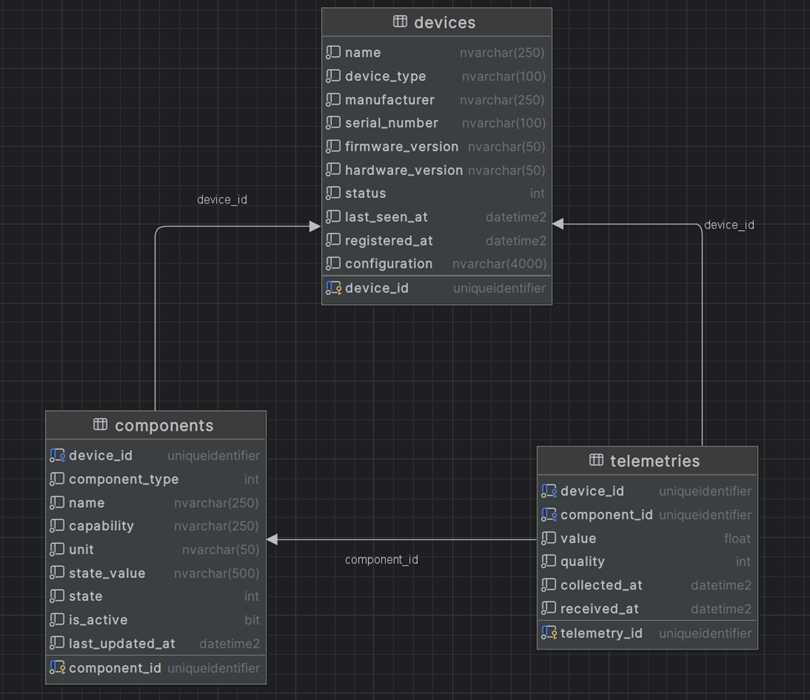
In our ASP.NET Core application, we have three main entities: Device, Component, and Telemetry.
Imagine a scenario where your system needs to insert 10,000-50,000 telemetry records into the database every few minutes.
You can wait for minutes for this insert to happen with EF Core, but you don't have to.
Entity Framework Extensions solves this problem and provides lightning-fast bulk insert methods.
To get started with the Entity Framework Extensions library, you need to install the following NuGet package:
bashdotnet add package Z.EntityFramework.Extensions.EFCore
Here's how to bulk insert IoT devices into the database.
The Entity Framework Extensions library provides various extension methods for the DbContext class, such as BulkInsert.
Both async and sync versions of this method are available.
csharp// @nuget: Z.EntityFramework.Extensions.EFCore using Z.EntityFramework.Extensions; var devices = GenerateDevices(10); await dbContext.BulkInsertAsync(devices);
Entity Framework Extensions provides extensive configuration options to customize the behavior of bulk operations.
Entity Framework Extensions - Bulk Insert Options
The bulk insert method provides several options for customizing behavior. The method accepts an options delegate as a second parameter, allowing you to configure various settings.
Let's explore a few of the most important options.
Entity Framework Extensions - InsertIfNotExists Option
The InsertIfNotExists option allows you to insert only the entities that don't already exist in the database.
To demonstrate this behavior, first insert 10 IoT devices, then attempt to insert the same devices again with InsertIfNotExists enabled:
csharp// @nuget: Z.EntityFramework.Extensions.EFCore using Z.EntityFramework.Extensions; var devices = GenerateDevices(10); await dbContext.BulkInsertAsync(devices); // Insert the same 10 devices again with the InsertIfNotExists = true option await dbContext.BulkInsertAsync(devices, options => { options.InsertIfNotExists = true; });
The second insert operation prevents duplicate entries, ensuring that the 10 devices are not inserted again.
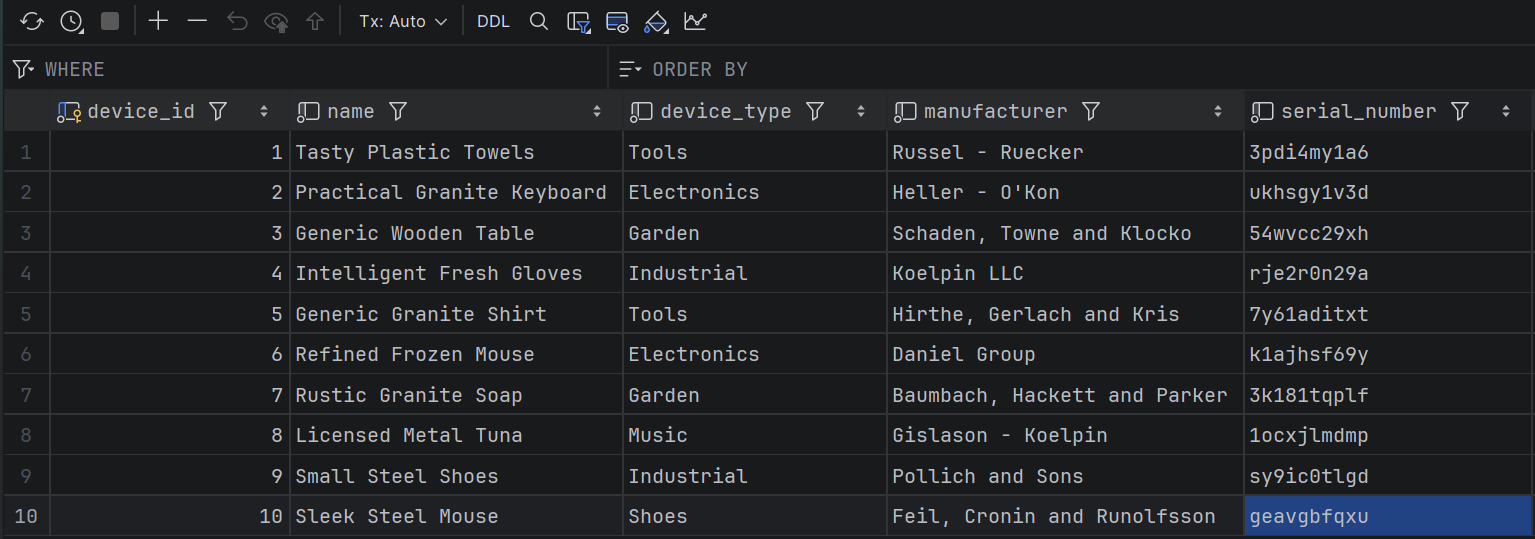
By default, the Entity Framework Extensions library matches the entities by their primary key.
In our case, in the Device entity, it will be the DeviceId.
But you can customize this behavior.
Entity Framework Extensions - Customizing Primary Key with ColumnPrimaryKeyExpression
The ColumnPrimaryKeyExpression option accepts a delegate that defines which property (or properties) to use for matching entities.
This option supports matching by any property or combination of properties. For example, IoT devices can be matched by serial number instead of the default primary key:
csharp// @nuget: Z.EntityFramework.Extensions.EFCore using Z.EntityFramework.Extensions; await dbContext.BulkInsertAsync(devices, options => { options.InsertIfNotExists = true; options.ColumnPrimaryKeyExpression = d => d.SerialNumber; });
Entity Framework Extensions - InsertKeepIdentity Option
The InsertKeepIdentity option allows you to insert custom identity values instead of letting the database generate them automatically. This is particularly useful when the Device entity uses a long type for the primary key in EF Core and a database identity in SQL Server.
Let's try to insert 2 devices with custom IDs:
csharp// @nuget: Z.EntityFramework.Extensions.EFCore using Z.EntityFramework.Extensions; var devices = GenerateDevices(2); devices[0].DeviceId = 1000; devices[1].DeviceId = 1001; await dbContext.BulkInsertAsync(devices, options => { options.InsertKeepIdentity = true; });
The bulk insert operation preserves the custom identity values (1000 and 1001) instead of using database-generated values.
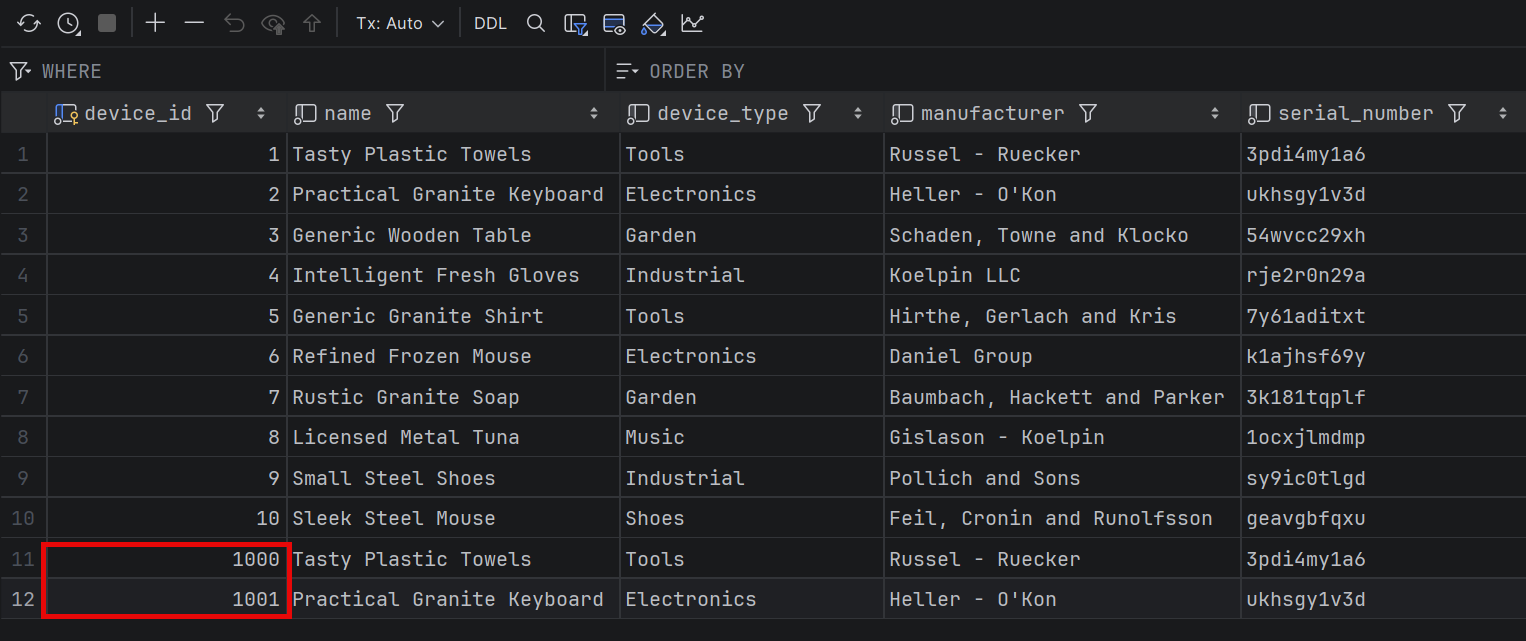
This option is particularly useful when you synchronize data from other services or external providers, and you want to keep your identity values in sync with those systems.
Entity Framework Extensions - AutoMapOutputDirection Option
The AutoMapOutputDirection option controls whether database-generated values are mapped back to the entity objects after insertion. By default, this option is set to true, which means primary keys and other database-generated columns are automatically populated:
csharp// @nuget: Z.EntityFramework.Extensions.EFCore using Z.EntityFramework.Extensions; var devices = GenerateDevices(10); await dbContext.BulkInsertAsync(devices); // After insertion, devices now have their DeviceId populated foreach (var device in devices) { Console.WriteLine($"Device ID: {device.DeviceId}"); }
The identity values for primary keys and any database-generated columns are automatically returned and mapped to the entity objects.
When database-generated values are not needed, setting AutoMapOutputDirection to false improves performance:
csharp// @nuget: Z.EntityFramework.Extensions.EFCore using Z.EntityFramework.Extensions; await dbContext.BulkInsertAsync(devices, options => { options.AutoMapOutputDirection = false; });
With this option disabled, the DeviceId property remains unpopulated after insertion, reducing overhead and improving performance.
Entity Framework Extensions - BulkInsertOptimized Method
The BulkInsertOptimized method provides an alternative to BulkInsert with built-in performance analysis capabilities.
While BulkInsertOptimized behaves similarly to BulkInsert with AutoMapOutputDirection = false, it offers a key advantage: it returns a BulkOptimizedAnalysis object containing performance hints and optimization recommendations.
Here is how to insert 10,000 devices with BulkInsertOptimizedAsync:
csharp// @nuget: Z.EntityFramework.Extensions.EFCore using Z.EntityFramework.Extensions; var devices = GenerateDevices(10_000); await dbContext.BulkInsertOptimizedAsync(devices);
In this article, I explained in depth the performance difference between BulkInsertAsync and BulkInsertOptimizedAsync methods.
Entity Framework Extensions - IncludeGraph Option for Related Entities
The IncludeGraph option enables automatic insertion of related entities within an object graph. This feature is particularly useful when working with parent-child relationships, such as devices with their associated components.
Consider a scenario with 10 devices, each containing three components:
csharp// @nuget: Z.EntityFramework.Extensions.EFCore using Z.EntityFramework.Extensions; var devices = GenerateDevices(10); foreach (var device in devices) { device.Components = GenerateComponents(3); }
The IncludeGraph option handles the insertion of the entire object graph, including all related entities:
csharp// @nuget: Z.EntityFramework.Extensions.EFCore using Z.EntityFramework.Extensions; await dbContext.BulkInsertAsync(devices, options => { options.IncludeGraph = true; });
This option automatically inserts related entities from the graph of objects and preserves their relationships.
This is a very useful option, typically achieved with a single line of code in EF Core Extensions. Imagine how much code you will write when using SQL Bulk Copy.
Entity Framework Extensions - AutoTruncate Option for String Length Management
The AutoTruncate option automatically truncates string values to match the maximum length defined in the Entity Framework mapping. When enabled, strings exceeding the database column length are trimmed before insertion, preventing length constraint violations.
csharp// @nuget: Z.EntityFramework.Extensions.EFCore using Z.EntityFramework.Extensions; var devices = GenerateDevices(10); foreach (var device in devices) { device.HardwareVersion += " some long text that needs to be truncated by EF Core Extensions library"; } await dbContext.BulkInsertAsync(devices, options => { options.AutoTruncate = true; });
Entity Framework Extensions - Batch Options for Optimized Throughput
Entity Framework Extensions provides pretty important batch options:
- BatchSize - Allows you to specify how many rows are included in each batch. One batch equals one database round trip.
- BatchTimeout - Specifies the maximum time to wait for each batch to be inserted or updated.
- BatchDelayInterval - Sets the delay interval in milliseconds between batches are sent.
The batch options come with great defaults. The library provides optimal values for each database provider.
They are a good starting point, but in some cases you may need to tune these values to larger or smaller values depending on your use case, number of columns and tables, database provider, and your database server performance.
csharp// @nuget: Z.EntityFramework.Extensions.EFCore using Z.EntityFramework.Extensions; await dbContext.BulkInsertAsync(devices, options => { options.BatchSize = 1000; options.BatchTimeout = 180; options.BatchDelayInterval = 100; });
Entity Framework Extensions - Advanced Primary Key Configuration Options
Beyond basic primary key customization, Entity Framework Extensions supports complex composite keys through multiple configuration approaches.
For composite primary keys consisting of multiple fields, use an anonymous object in ColumnPrimaryKeyExpression:
csharp// @nuget: Z.EntityFramework.Extensions.EFCore using Z.EntityFramework.Extensions; await dbContext.BulkInsertAsync(devices, options => { options.ColumnPrimaryKeyExpression = d => new { d.DeviceId, d.SerialNumber }; });
The ColumnPrimaryKeyNames option provides an alternative approach using string-based property names:
csharp// @nuget: Z.EntityFramework.Extensions.EFCore using Z.EntityFramework.Extensions; await dbContext.BulkInsertAsync(devices, options => { options.ColumnPrimaryKeyNames = new List<string> { "DeviceId", "SerialNumber" }; });
This approach is particularly useful when property names are determined dynamically at runtime.
For advanced scenarios requiring custom SQL logic, the InsertPrimaryKeyAndFormula option accepts custom SQL code as a string. However, this approach lacks compile-time validation and should be used cautiously.
Entity Framework Extensions - Column Input, Output, and Ignore Options
Three categories of column options are available: input, output, and ignore options.
The ColumnInputExpression option defines which properties should be included in insert or update operations:
csharp// @nuget: Z.EntityFramework.Extensions.EFCore using Z.EntityFramework.Extensions; await dbContext.BulkInsertAsync(devices, options => { options.ColumnInputExpression = d => new { d.Name, d.DeviceType, d.Manufacturer, d.SerialNumber }; });
Properties not included in the expression may be populated by database defaults or triggers.
Each column option provides an alternative string-based variant (e.g., ColumnInputNames) for scenarios where property names are determined at runtime.
The ColumnOutputExpression option controls which columns are returned after insert, update, or other bulk operations:
csharp// @nuget: Z.EntityFramework.Extensions.EFCore using Z.EntityFramework.Extensions; await dbContext.BulkInsertAsync(devices, options => { options.ColumnInputExpression = d => new { d.Name, d.DeviceType, d.Manufacturer, d.SerialNumber }; options.ColumnOutputExpression = d => new { d.DeviceId }; });
The IgnoreOnInsertExpression option excludes specific columns from insert operations. For IoT devices, this is useful for columns that should remain unset during initial insertion:
csharp// @nuget: Z.EntityFramework.Extensions.EFCore using Z.EntityFramework.Extensions; await dbContext.BulkInsertAsync(devices, options => { options.IgnoreOnInsertExpression = d => d.LastSeenAt; });
For update operations, the IgnoreOnUpdateExpression option prevents specific columns from being modified:
csharp// @nuget: Z.EntityFramework.Extensions.EFCore using Z.EntityFramework.Extensions; await dbContext.BulkUpdateAsync(existingDevices, options => { options.IgnoreOnUpdateExpression = d => d.RegisteredAt; });
In this example, the RegisteredAt column remains unchanged in the database even if modified in the entity object.
The official documentation provides a comprehensive list of column options for insert, update, merge, and synchronize operations, offering significant time savings for complex data manipulation scenarios.
Entity Framework Extensions - Coalesce Options for Null Value Handling
Coalesce expressions provide fine-grained control over null value handling during update, merge, and synchronize operations.
When a column is included in a coalesce expression, Entity Framework Extensions keeps the existing database value whenever the source value is null. This prevents null values from overwriting existing data.
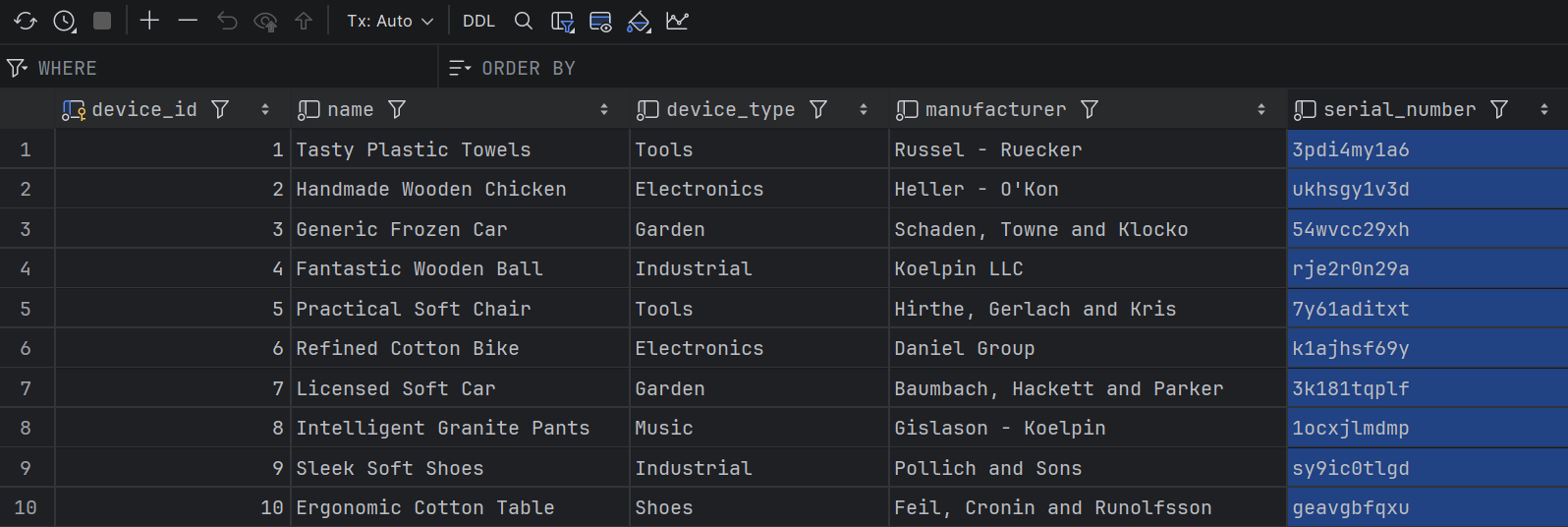
For example, when updating devices where SerialNumber is null, the coalesce option preserves the existing database value:
csharp// @nuget: Z.EntityFramework.Extensions.EFCore using Z.EntityFramework.Extensions; var existingDevices = await dbContext.Devices.Take(10).ToListAsync(); var faker = new Faker(); foreach (var device in existingDevices) { device.Name = faker.Commerce.ProductName(); device.Status = faker.PickRandom<DeviceStatus>(); device.LastSeenAt = faker.Date.Recent(); device.SerialNumber = null; } await dbContext.BulkUpdateAsync(existingDevices, options => { options.CoalesceOnUpdateExpression = d => d.SerialNumber; });
After the bulk update operation completes, the serial number remains unchanged in the database, preserving its original value rather than setting it to null.
Entity Framework Extensions - CoalesceDestination Expression
The CoalesceDestinationOnUpdateExpression option provides the inverse behavior: it updates values only when the destination (database) value is currently null, leaving non-null database values unchanged.
csharp// @nuget: Z.EntityFramework.Extensions.EFCore using Z.EntityFramework.Extensions; var existingDevices = await dbContext.Devices.Take(10).ToListAsync(); var faker = new Faker(); foreach (var device in existingDevices) { device.SerialNumber = "some new value"; } await dbContext.BulkUpdateAsync(existingDevices, options => { options.CoalesceDestinationOnUpdateExpression = d => d.Configuration; });
In this example, the Configuration property is updated only for devices where the database value is currently null, while devices with existing configuration values remain unchanged.
Entity Framework Extensions - Conditional Update Options
Additional options are available when updating entities. By updating, I mean all update methods: bulk update, bulk merge, and bulk synchronize.
Entity Framework Extensions - UpdateMatchedAndCondition Expression
The UpdateMatchedAndConditionExpression option enables conditional updates based on field equality. This option accepts a lambda expression that defines which properties must match between the source and destination for the update to proceed.
The update action executes only when the specified properties have equal values in both the source list and the destination database:
csharp// @nuget: Z.EntityFramework.Extensions.EFCore using Z.EntityFramework.Extensions; var existingDevices = await dbContext.Devices.Take(10).ToListAsync(); var faker = new Faker(); foreach (var device in existingDevices) { device.Name = faker.Commerce.ProductName(); device.Status = faker.PickRandom<DeviceStatus>(); device.LastSeenAt = faker.Date.Recent(); } existingDevices[0].DeviceType = "new device type"; existingDevices[1].DeviceType = "new device type"; await dbContext.BulkUpdateAsync(existingDevices, options => { options.UpdateMatchedAndConditionExpression = d => new { d.DeviceType }; });
In this example, updating 10 devices, of which 2 have modified DeviceType values, results in only 8 devices being updated (excluding the 2 with changed DeviceType).
This option is useful in several scenarios:
- Status fields - When synchronizing data, you want to update only those entities that have the matched status.
- Optimistic concurrency - Useful for dates and row versions used for optimistic concurrency.
- Soft deletes - Useful for boolean columns such as
IsLockedandIsDeletedfor soft deleted records.
Entity Framework Extensions - UpdateMatchedAndOneNotCondition Expression
The UpdateMatchedAndOneNotConditionExpression option provides complementary functionality. It accepts a lambda expression defining properties that must differ between source and destination:
csharp// @nuget: Z.EntityFramework.Extensions.EFCore using Z.EntityFramework.Extensions; await dbContext.BulkUpdateAsync(existingDevices, options => { options.UpdateMatchedAndOneNotConditionExpression = d => new { d.DeviceType, d.SerialNumber }; });
Entity Framework Extensions performs the update only when at least one selected property (such as DeviceType or SerialNumber) differs between source and destination. This prevents unnecessary updates when no meaningful changes have occurred.
Real-world use cases include:
- Selective field updates - Synchronize products or users by updating only when critical fields (pricing, personal information) have changed, avoiding unnecessary database writes.
- Audit field optimization - Update audit records only when meaningful audit fields (modified date, modified by) have changed, reducing database load during synchronization.
Entity Framework Extensions - IncludeGraphBuilder for Complex Graph Operations
The IncludeGraphOperationBuilder option provides fine-grained control over bulk operations when working with entity graphs. While the IncludeGraph option handles related entities automatically, IncludeGraphOperationBuilder allows you to customize the behavior for each entity type in the graph.
This is particularly useful when different entities in your graph require different configurations. For example, when merging devices with their components, you might want to use different primary key expressions for each entity type.
Consider a scenario where devices and their components need to be merged using custom keys:
csharp// @nuget: Z.EntityFramework.Extensions.EFCore using Z.EntityFramework.Extensions; var existingDevices = await dbContext.Devices .Include(x => x.Components) .Take(10) .ToListAsync(); var faker = new Faker(); foreach (var device in existingDevices) { device.Name = faker.Commerce.ProductName(); device.Status = faker.PickRandom<DeviceStatus>(); device.LastSeenAt = faker.Date.Recent(); } existingDevices.AddRange(GenerateDevices(5));
The IncludeGraphOperationBuilder accepts a delegate that receives each bulk operation in the graph. You can then configure options specific to each entity type:
csharp// @nuget: Z.EntityFramework.Extensions.EFCore using Z.EntityFramework.Extensions; await dbContext.BulkMergeAsync(existingDevices, options => { options.IncludeGraph = true; options.IncludeGraphOperationBuilder = operation => { if (operation is BulkOperation<Device> bulkOperation) { bulkOperation.ColumnPrimaryKeyExpression = x => x.SerialNumber; } else if (operation is BulkOperation<Component> bulk) { bulk.ColumnPrimaryKeyExpression = x => x.Name; } }; });
This configuration uses SerialNumber as the primary key for devices and Name as the primary key for components. All available bulk operation options can be applied individually to each entity type in the graph, including column input/output expressions, ignore options, and conditional update expressions.
Note that while some options, such as BatchSize, are automatically propagated through the graph, column-related options must be configured explicitly for each entity type, as they depend on the specific properties of each entity.
Entity Framework Extensions - Events and Hooks
Entity Framework Extensions provides a comprehensive event system that allows you to customize bulk operations at different stages of execution. Events are categorized into two types:
- Pre events - Execute before the operation runs, ideal for setting audit fields, validating data, or modifying destination table names
- Post events - Execute after the operation completes, useful for cleanup, logging, adjusting in-memory entities, or chaining additional logic
You can explore other available events in the official documentation. There are plenty of them.
Important Note: When using the IncludeGraph feature, Pre and Post events (PreBulkInsert, PreBulkUpdate, PreBulkMerge, PreBulkDelete, PreBulkSynchronize, and their corresponding Post events) are triggered only for root entities. They are not fired for related entities included in the graph.
Entity Framework Extensions - Audit Options for Tracking Changes
The audit feature in Entity Framework Extensions captures a complete history of all changes made during bulk operations. This feature works with all bulk write methods: BulkInsert, BulkUpdate, BulkDelete, BulkMerge, and BulkSynchronize.
Auditing is disabled by default because it requires additional SQL statements to capture old and new values, which impacts performance. To enable auditing, set UseAudit = true and provide a list to store the audit entries:
csharp// @nuget: Z.EntityFramework.Extensions.EFCore using Z.EntityFramework.Extensions; var existingDevices = await dbContext.Devices .Include(x => x.Components) .Take(10) .ToListAsync(); var faker = new Faker(); foreach (var device in existingDevices) { device.Name = faker.Commerce.ProductName(); device.Status = faker.PickRandom<DeviceStatus>(); device.LastSeenAt = faker.Date.Recent(); } existingDevices.AddRange(GenerateDevices(5)); var auditEntries = new List<AuditEntry>(); await dbContext.BulkMergeAsync(existingDevices, options => { options.IncludeGraph = true; options.UseAudit = true; options.AuditEntries = auditEntries; });
After the operation completes, the auditEntries list contains detailed information about every change:
AuditEntry Structure:
Action- The type of operation performed (Insert, Update, Delete, or SoftDelete)Date- Timestamp when the operation occurredTableName- The database table affectedMetas- Dictionary for custom metadataValues- List ofAuditEntryItemobjects containing column-level changes
AuditEntryItem Structure:
ColumnName- The name of the column that changedOldValue- The value before the operation (null for inserts)NewValue- The value after the operation (null for deletes)
For insert operations, OldValue is null and NewValue contains the inserted data. For update operations, both values are populated, showing exactly what changed. For delete operations, OldValue contains the deleted data and NewValue is null.
The audit feature is particularly useful for:
- Debugging complex bulk merge and synchronize operations
- Implementing change tracking without custom code
- Creating audit trails for compliance requirements
- Analyzing data modifications before committing to permanent audit tables
Once captured, audit entries can be inserted into a dedicated audit table for long-term storage. However, be aware that enabling audit options increases operation time due to the additional queries required to capture change data.
Entity Framework Extensions - Log Options for Debugging SQL
Entity Framework Extensions provides logging capabilities to capture SQL statements, parameters, and execution details during bulk operations. The library offers two approaches for logging:
Approach 1: Using the Log Delegate
The Log option accepts an action that executes immediately when log messages are generated. This approach is ideal for real-time logging to the console, files, or third-party logging frameworks:
csharp// @nuget: Z.EntityFramework.Extensions.EFCore using Z.EntityFramework.Extensions; var builder = new StringBuilder(); await dbContext.BulkMergeAsync(existingDevices, options => { options.IncludeGraph = true; options.Log += message => builder.AppendLine(message); }); Console.WriteLine(builder.ToString());
You can also log directly to the console:
csharp// @nuget: Z.EntityFramework.Extensions.EFCore using Z.EntityFramework.Extensions; await dbContext.BulkMergeAsync(existingDevices, options => { options.Log = Console.WriteLine; });
Approach 2: Using LogDump with UseLogDump
The LogDump property collects all log messages in a StringBuilder for review after the operation completes. This requires setting UseLogDump = true:
csharp// @nuget: Z.EntityFramework.Extensions.EFCore using Z.EntityFramework.Extensions; var logBuilder = new StringBuilder(); await dbContext.BulkMergeAsync(existingDevices, options => { options.UseLogDump = true; options.LogDump = logBuilder; }); Console.WriteLine(logBuilder.ToString());
The logged output includes all SQL statements executed by the library, including temporary table creation, data staging, merge operations, and cleanup queries. This visibility is invaluable for understanding the library's internal operations, troubleshooting performance issues, and verifying that operations execute as expected.
Entity Framework Extensions - RowsAffected Option for Operation Results
The ResultInfo option provides detailed metrics about the number of rows affected by bulk operations. This information is useful for validation, logging, and monitoring the impact of bulk operations.
To enable this feature, set UseRowsAffected = true and provide a ResultInfo object:
csharp// @nuget: Z.EntityFramework.Extensions.EFCore using Z.EntityFramework.Extensions; var resultInfo = new ResultInfo(); await dbContext.BulkMergeAsync(existingDevices, options => { options.IncludeGraph = true; options.UseRowsAffected = true; options.ResultInfo = resultInfo; });
Note that enabling this option slightly decreases performance because it requires additional queries to count affected rows.
After the operation completes, the ResultInfo object contains comprehensive statistics:
Available Properties:
RowsAffected- Total number of rows affected across all operationsRowsAffectedInserted- Number of rows insertedRowsAffectedUpdated- Number of rows updatedRowsAffectedDeleted- Number of rows deletedRowsAffectedSoftDeleted- Number of rows soft deleted
When using IncludeGraph, the ResultInfo object also provides results broken down by table name, allowing you to see exactly how many rows were affected in each related entity table.
This feature is particularly valuable for:
- Verifying that operations affected the expected number of rows
- Logging operation metrics for monitoring and auditing
- Detecting unexpected behavior (e.g., fewer updates than expected)
- Reporting operation results to users or external systems
Entity Framework Extensions - Database Provider Specific Options
Entity Framework Extensions provides database-specific options to use unique features and optimize performance for different database providers.
Oracle-Specific Options:
OracleInsertTableHint- Applies a hint to INSERT operations for Oracle databasesOracleSelectInsertIfNotExistsTableHint- Applies a hint to SELECT operations when usingInsertIfNotExistswith Oracle
PostgreSQL-Specific Options:
UsePostgreSqlInsertOnConflictDoNothing- Silently ignores conflicts that would trigger constraint violations (e.g., duplicate keys)UsePostgreSqlInsertOverridingSystemValue- Allows inserted values to override database-generated system column values (useful for timestamp columns)UsePostgreSqlInsertOverridingUserValue- Allows inserted values to override user-defined default values at the database level
SQL Server-Specific Options:
SqlBulkCopyOptions- Configures the behavior ofSqlBulkCopywhen inserting directly into the destination table- Default value:
FireTriggers | CheckConstraints
These provider-specific options allow you to fine-tune bulk operations based on your database platform's capabilities and requirements. For example, PostgreSQL's conflict handling options are essential for upsert scenarios, while Oracle's hint system can significantly improve query performance in specific environments.
Summary
In this post, we explored the most important customizable options available in Entity Framework Extensions.
These options will save you countless hours of tedious coding and help you avoid bug-prone manual implementations. The library provides hundreds of options that give you fine-grained control over bulk operations.
Entity Framework Extensions is a commercial library with a free trial, which you can use to see if it's right for your project. The library requires a license for production use. See more information on licensing here.
For commercial use, the time saved in development and the improved application performance typically pay for the license within the first month of use.
Try the free trial to see how these options can transform your bulk data operations.
Many thanks to ZZZ Projects for sponsoring this blog post.
Hope you find this newsletter useful. See you next time.
Comments