The developer toolkit looks very different in 2026 than it did just two years ago, or even a year ago.
AI is no longer a side feature you tap into occasionally. It sits at the center of how you write code, design systems, run meetings, and learn new technologies.
Today, I want to tell you about the 10 tools I actually use with great success in 2026. And can definitely recommend them to .NET developers, architects, and tech leads to help ship faster, think more clearly, and stop wasting hours on work that machines now handle better.
I receive many LinkedIn messages from people asking what tools I use to be more productive. That's why I decided to create this newsletter issue.
If you only adopt a few of them this year, you will feel the difference in your daily workflow almost immediately.
P.S.: I'm not sponsored by any vendors of these tools to write this issue.
Let's dive in.
AI Coding Assistants
The first wave of AI coding tools focused on autocompletion (like GitHub Copilot). They suggested the next line or two of code based on what you just typed.
Today, you need tools that reason about your entire codebase, understand your architecture, and can execute multi-step tasks without constant hand-holding. And most importantly, they produce high-quality code.
For a long time, GitHub Copilot was the default AI coding assistant. But many developers have moved on.
Copilot agent is fine, but it has the following drawbacks:
- It's sitting in your IDE and is limited in what it can do on your PC
- It has lower limits on using AI models (Claude, OpenAI) - then if you use these directly
- Overall, the features and quality are lower than the competitors
Overall, there are two better AI agents:
- Claude (best)
- OpenAI Codex
1. Claude Code
It's an agentic coding tool that runs directly from your terminal or Desktop. You describe what you want, and it works through the problem step by step. It reads your files (on your PC, not just the solution), understands the context, makes changes, runs tests, and reports back.
Here is what makes Claude Code stand out for .NET developers:
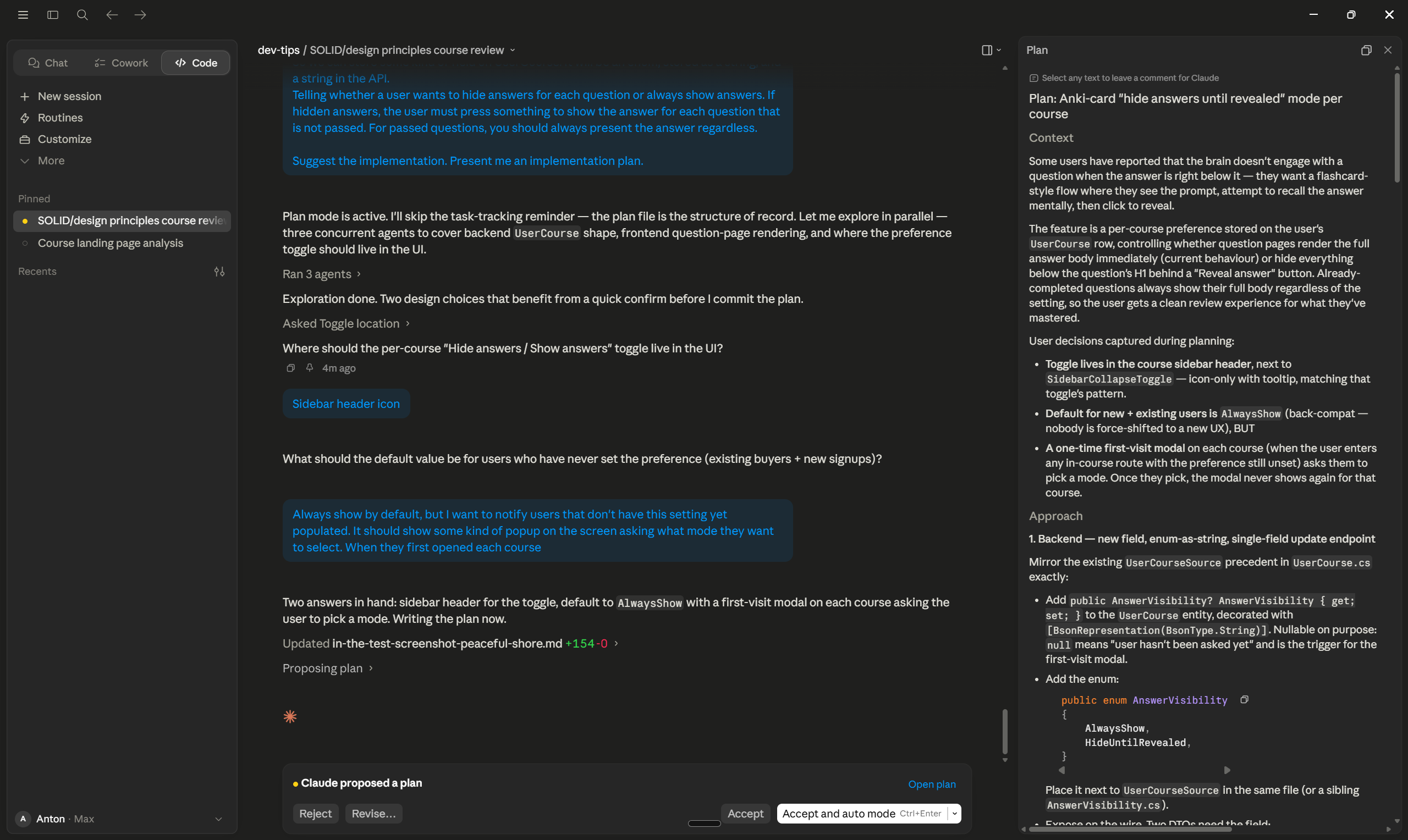
Plan Mode
Before Claude writes any code, you can ask it to make a plan first. It reads your project, thinks through the task, and presents a clear, step-by-step plan.
You review the plan, approve it, and only then does Claude start changing files.
This is a huge time-saver for bigger tasks. You catch wrong assumptions early, before any line of code is written.
And what I really like is how Claude surveys me with different questions and recommended options each time I create a plan.
Quality of produced code
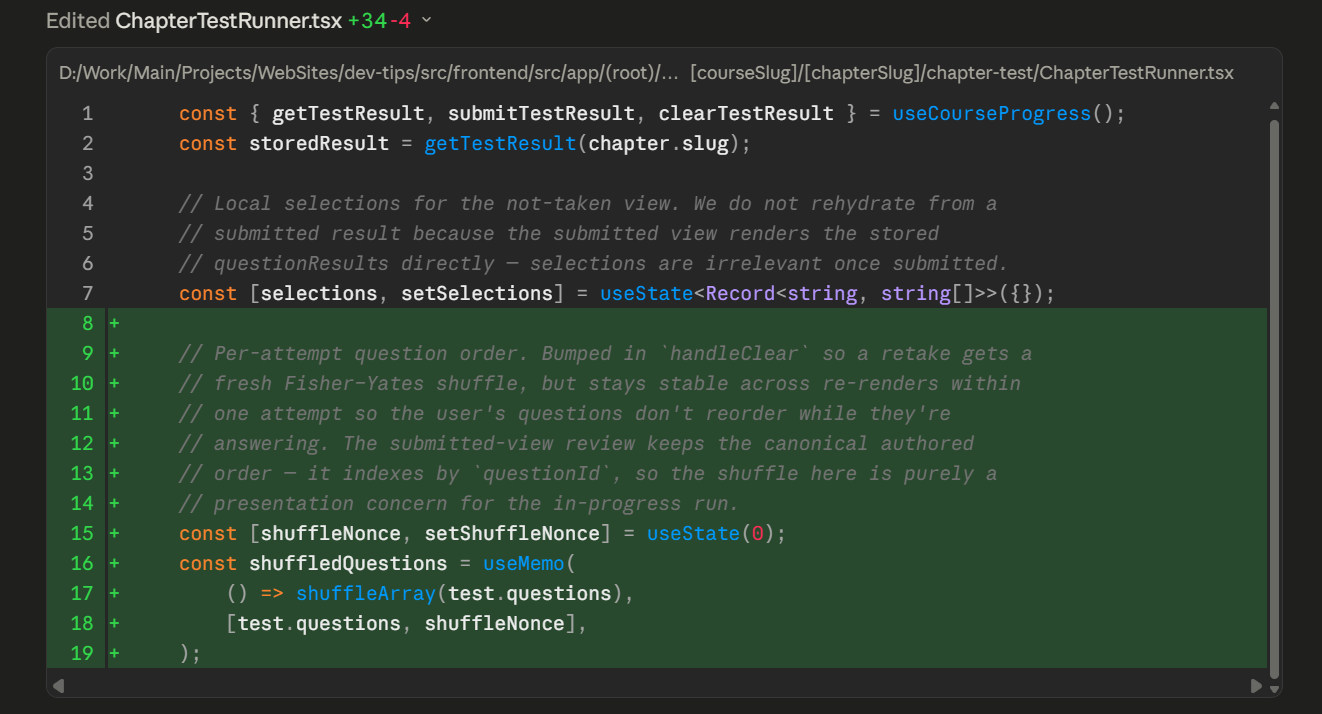
This is where Claude Code really stands out.
It reads your CLAUDE.md file at the root of the project and follows the rules it defines.
For .NET projects, that means it respects your Vertical Slice structure, uses Result<T> instead of throwing exceptions, applies primary constructors, and skips patterns you told it to avoid, like Repository or MediatR.
The most intelligent model is Claude Opus 4.7. It is the most capable AI model for writing code in the market.
When using Opus, you spend less time cleaning up after the model and more time reviewing real logic.
Writing code in a separate branch
Claude Code can create a Git worktree and work on a separate branch in the background.
You keep coding on your main branch. Claude builds a feature, fixes a bug, or runs a refactor on its own branch. When it's done, you review the diff and merge it as you would any other pull request.
This is perfect for long-running tasks. You don't have to stop your own work to wait for the agent.
Code reviews
Claude Code can review your current diff or a full pull request. It looks for real bugs, security issues, missing tests, and broken conventions.
You can run a quick review locally with the /code-review skill, or trigger /ultrareview for a multi-agent cloud review on harder pull requests.
Several specialized agents read the code in parallel and give you findings as inline comments on the PR.
It's like having a senior reviewer on call, every hour of the day.
Skills
A Skill is a small set of instructions you write once, and Claude loads on demand.
You can think of Skills as smart commands tuned for your team. Examples include:
- A skill that drafts pull request descriptions in your team's format
- A skill that scaffolds a new feature folder following your Vertical Slice rules
- A skill that runs your release checklist before a deploy
- A skill that writes integration tests using Testcontainers and Respawn
Anyone on the team can use a Skill without having to remember the steps. The Skill remembers them.
You can easily build your own skills from any session with a built-in Claude skill creator tool.
Connectors
Claude Code connects to the systems you already use: GitHub, Jira, Slack, Figma, Google Drive, Notion, MongoDB, Postgres, AWS, and many more.
You can ask things like "show me the failing tests on PR 42" or "Create a JIRA ticket from this bug," and Claude pulls the data and acts on it. The agent stops being a code-only tool and starts working with your whole stack.
Co Work
Cowork is not just about coding. It gives Claude access to your PC (where you allow it, and it's pretty secure), so it can do almost any work you do at your desk.
You can ask Claude to:
- Create a Word document with a project proposal
- Generate a PDF report from your meeting notes
- Build an Excel file with a budget, a roadmap, or a backlog
- Organize your local documentation folder and rename files in a consistent way
- Write a Business Requirements Document (BRD) for a new feature
- Prepare a slide deck from your latest design notes
- Fill out forms, rename screenshots, sort downloads, clean up your desktop
- Delegate any task in your web browser. Like book 10 sits for a conference for your team.
For tech leads and architects, this is a real shift.
And the best part is that Cowork also supports remote sessions. You can control Claude from your phone, check what it's doing, kick off new tasks, or review results while you're away from your laptop.
And you can also schedule tasks to run while you sleep; you just need your PC on.
Claude Models
Claude Code uses the Claude 4.X model family. You pick the right model for the job:
- Claude Opus 4.7 — the most capable model. Best for hard tasks like complex refactors, big architecture changes, tricky debugging, and any work where quality matters more than speed. This is the model I use for the heavy lifting.
- Claude Sonnet 4.6 — the balanced default. Fast enough for everyday coding, smart enough for most feature work. Great choice when you want speed and quality together.
- Claude Haiku 4.5 — the fastest and cheapest model. Best for quick edits, simple lookups, small fixes, and high-volume tasks where you don't need deep reasoning.
You can use Claude as a plugin in Rider and VS Code, but honestly, they have limited capabilities compared to Claude Desktop. This is why I recommend using Claude desktop, it works better and has way more features.
I wrote a detailed guide on using Claude for production development.
Pricing: Free tier available on claude.ai (doesn't include Claude Code). Paid plans start at Pro $20/month (or $17/month on the annual plan), with Max at $100/month and $200/month for heavier usage.
Download Claude Desktop here.
2. OpenAI Codex
OpenAI Codex is OpenAI's answer to Claude Code. It's an agentic coding tool that runs from your terminal and desktop, much like Claude.
Like Claude Code, it reads your files, writes code, runs commands, and ships changes. The workflow feels familiar if you've used Claude Code.
Codex is a strong second option if you already pay for ChatGPT or if your team standardizes on OpenAI models.
Here is what Codex offers:
Terminal agent
The Codex CLI works the same way Claude Code does. You open a terminal in your project, give Codex a task, and it works through the steps. It can read files, edit them, run tests, and report back.
Cloud agent in ChatGPT
You can also run Codex from the ChatGPT web app. It spins up its own sandbox, clones your repo, runs the task in the cloud, and opens a pull request when it's done.
This is useful for tasks you want to fire off and check later. You don't tie up your local machine, and you can run several tasks in parallel.
IDE integration
Codex plugs into Rider and VS Code. You get inline edits, multi-file changes, and chat-based coding without leaving the editor.
Pull request automation
Codex can open pull requests, write commit messages, and respond to review comments. For teams that move fast, this eliminates many small steps.
OpenAI Models
OpenAI Codex uses the GPT-5 model family. You pick the model based on the task:
- GPT-5 Codex — a version of GPT-5 tuned for coding. It handles long, multi-step tasks well and produces clean, readable code. Best choice for serious coding work in Codex.
- GPT-5 — the general-purpose flagship model. Strong at reasoning, planning, and explaining code. Good when your task mixes coding with research or design work.
- GPT-5 mini — a smaller, faster, and cheaper model. Good for quick edits, simple refactors, and high-volume tasks that don't require the full power of GPT-5.
In practice, most developers stick with GPT-5 Codex for the day-to-day work, and switch to GPT-5 when they need deeper reasoning.
Between the two, I prefer Claude Code for .NET work. The code quality is higher, the agentic features are more polished, and Skills give my team a real edge. But Codex is a solid choice and worth trying if you live in the OpenAI ecosystem.
P.S.: Codex has bigger limits than Claude on a Pro ($20) tier. Especially, the 5h limits.
Pricing: Free ChatGPT tier with limited Codex access. Paid plans start at ChatGPT Go ($8/month), ChatGPT Plus ($20/month), with ChatGPT Pro at $100 and $200/month for much higher limits.
Download Codex here.
3. JetBrains Rider
The IDE you choose shapes your entire daily experience as a developer. It affects how quickly you navigate code, how easily you refactor, and how much friction you experience when shipping a feature.
For years, Visual Studio was the default for .NET. And the recent Visual Studio 2026 is really great. It's much faster than the 2022 version, has a polished UI and has more built-in AI features with Copilot.
But, for me Rider is the best .NET IDE for developers who care about quality. And it's the best choice if you work on macOS or Linux (Visual Studio is Windows only).
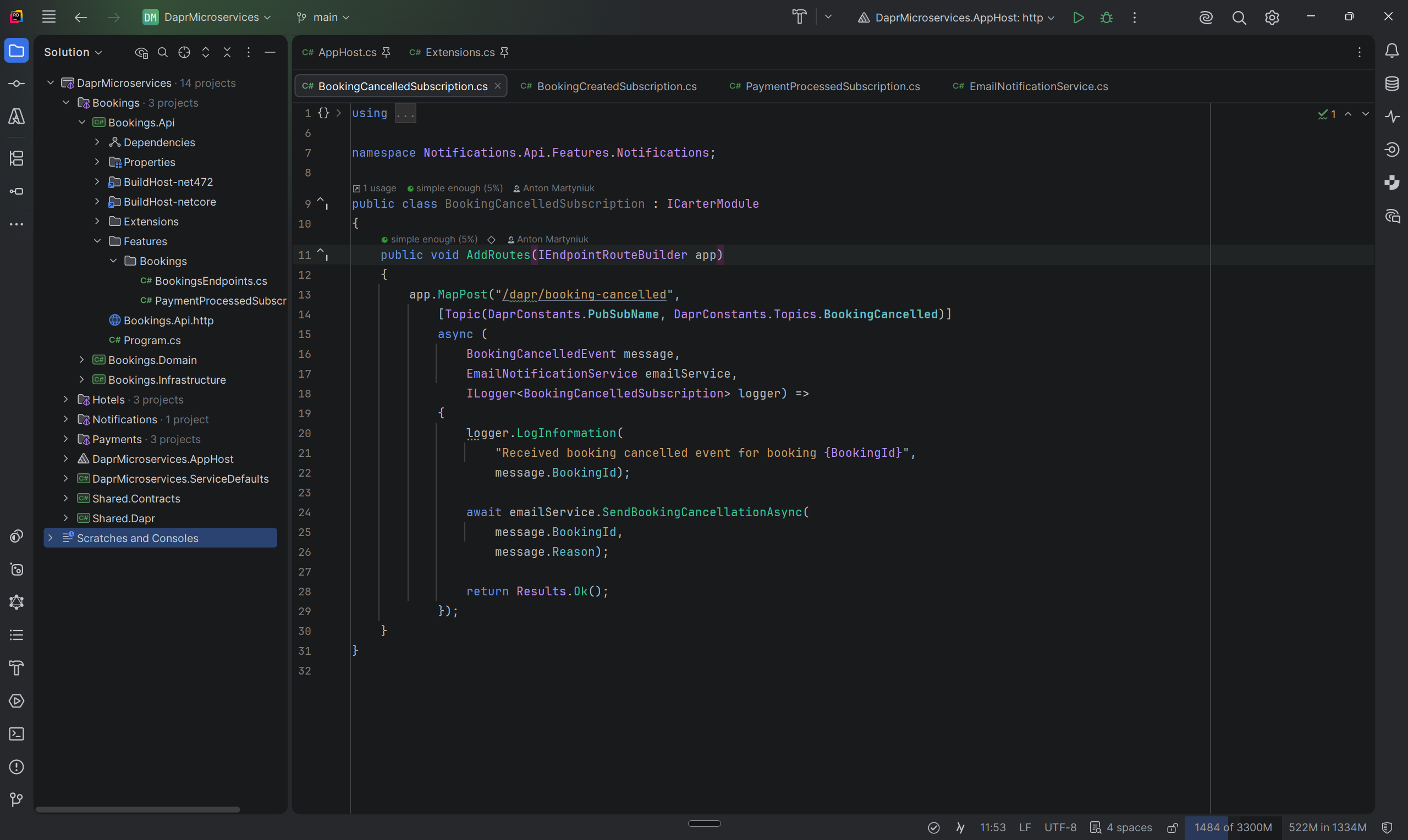
Here is what you get when you switch to Rider:
- Smarter refactoring — Rider's refactoring engine is the gold standard in .NET. Rename, extract, inline, move, change signature — every operation works reliably across your entire solution, including across project boundaries.
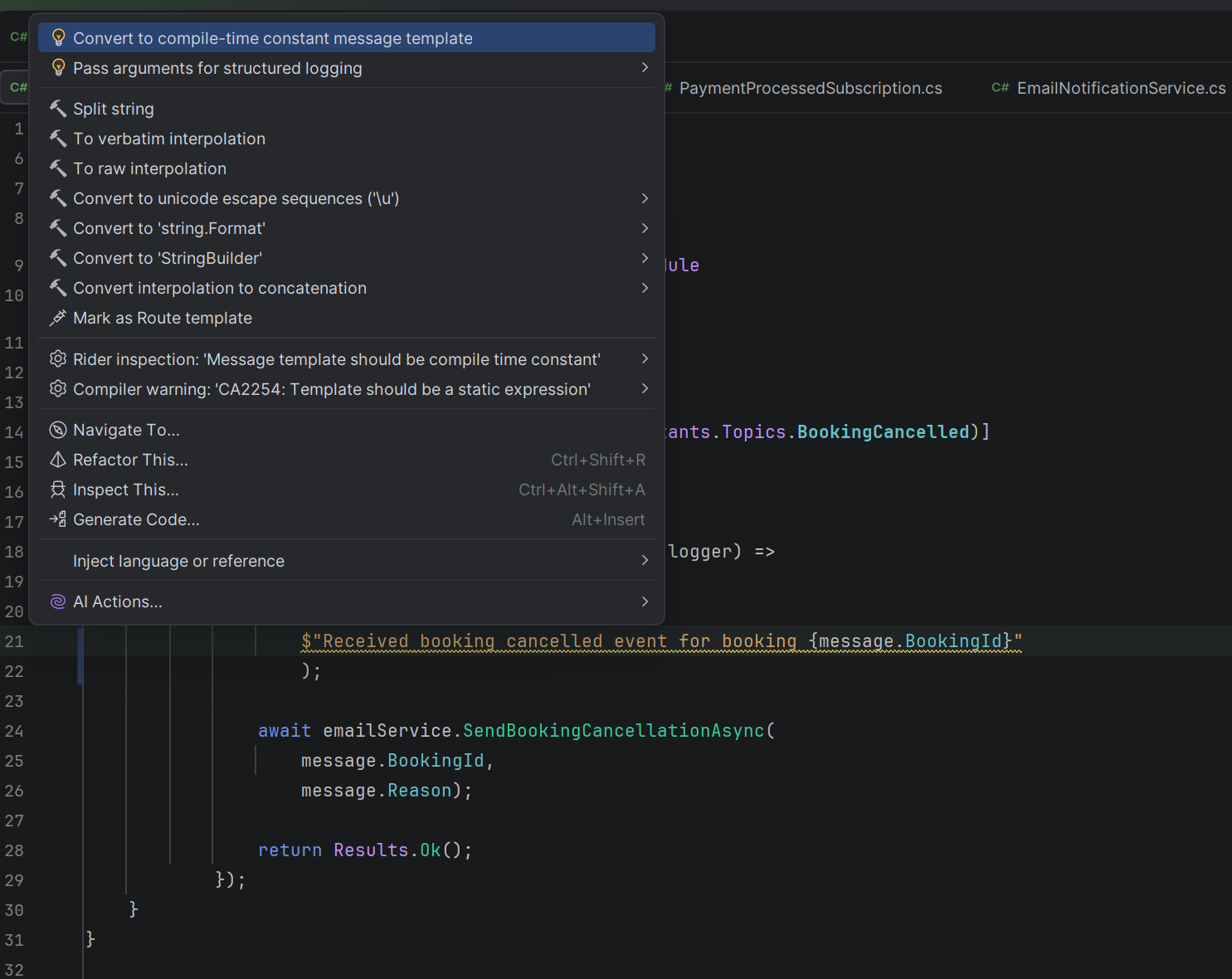
- Built-in decompiler — when you ctrl-click into a third-party library, Rider shows you the decompiled source instantly. No separate tools are needed. And you can even debug 3rd-party code.
- Better performance on large solutions — Rider handles solutions with 50, 100, or 200 projects easily. Search is faster and richer than in Visual Studio.
- First-class frontend support — if your team builds Blazor, React, Angular, or Vue apps alongside ASP .NET Core APIs, Rider handles both worlds in the same IDE. You don't need a second editor for the frontend.
- Cross-platform — Rider runs natively on Windows, macOS, and Linux. If half your team is on Macs, everyone gets the same experience.
The Junie agent is what makes Rider competitive in the AI era.
Junie is JetBrains' AI coding agent, bringing the same agentic workflow you get from tools like Cursor directly into Rider. It can plan changes across files, run code, fix errors it sees, and iterate until the task is done.
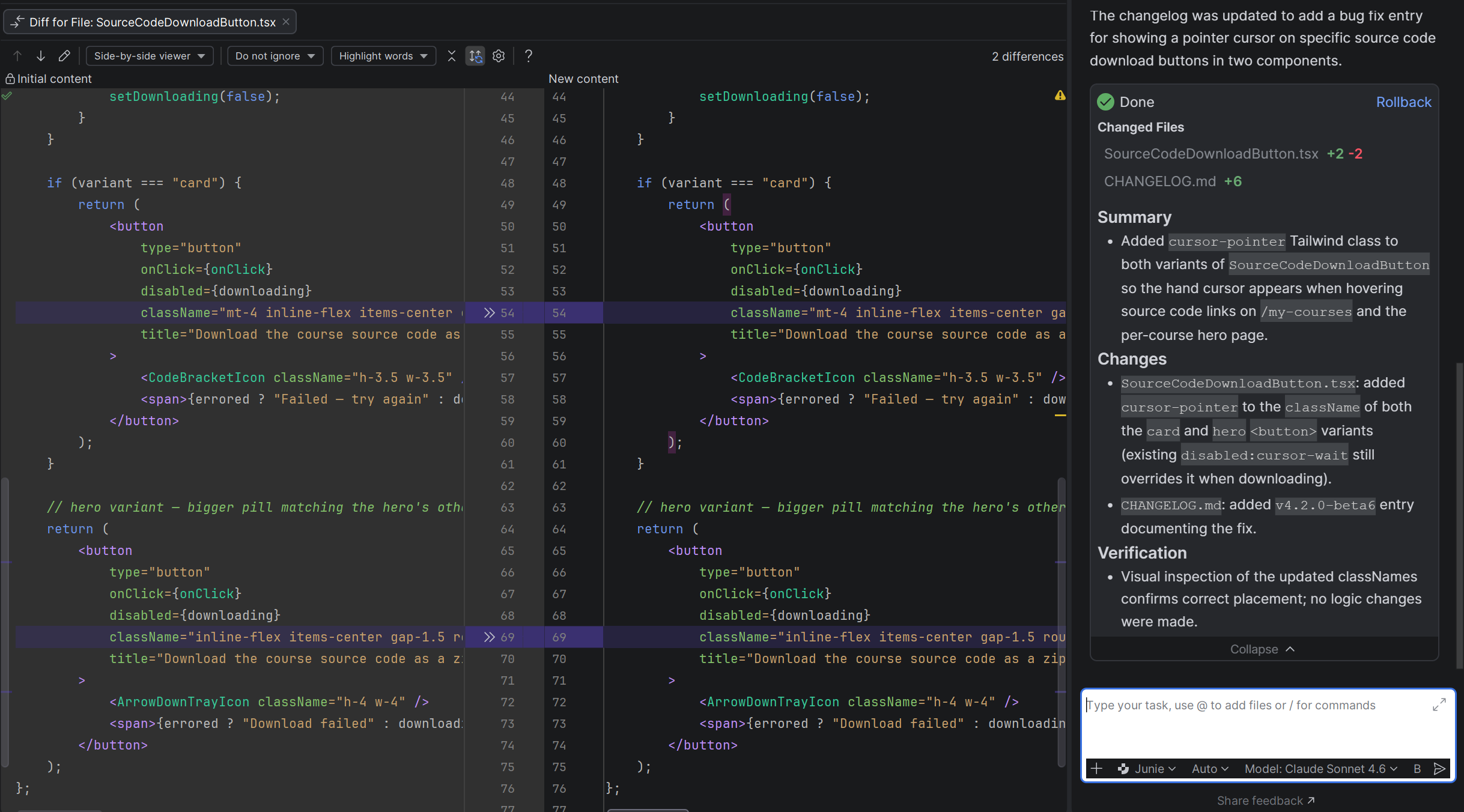
And I like Junie much more than Copilot in Visual Studio.
Also, Rider offers AI code completion based on your context. It helps you write code much faster.
Combined with Rider's deep understanding of .NET semantics, Junie produces noticeably better suggestions.
For more on setting up a modern .NET project that takes full advantage of these tools, see How to Start a New .NET Project in 2026.
Pricing: Free for non-commercial use (learning, open source, hobby projects). For commercial work, Rider standalone is $169/year for individuals and $519/user/year for organizations. The better value is dotUltimate at $219/year for individuals and $609/user/year for organizations — it bundles Rider with ReSharper, ReSharper C++, dotTrace, dotCover, dotMemory, and JetBrains AI Pro.
Download Rider here.
4. Cursor
Cursor is the right choice if you prefer a VS Code base.
It looks and feels like VS Code, because it's built on top of it. In Cursor AI is not an extension you install — it's injected into every part of the editor.
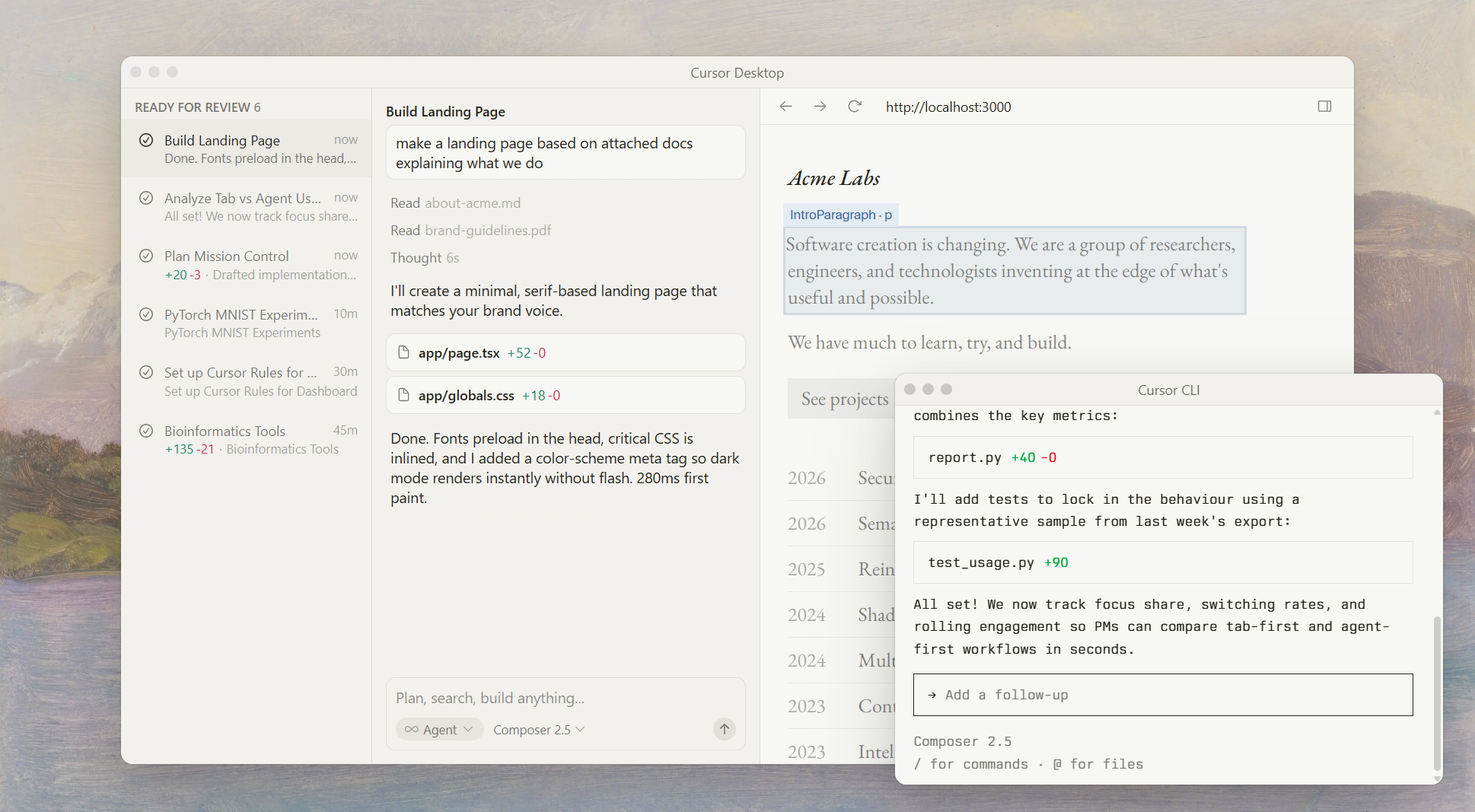
Here is what you get:
- AI-native tab complete — suggestions go beyond the current line. Cursor predicts multi-line edits, follows your refactoring intent, and adapts to your style as you work.
- Inline edits — highlight a block of code, describe what you want changed, and Cursor rewrites it right in place. No copy-paste loop with a chat window.
- Full codebase chat — ask questions about your project and Cursor pulls relevant files into the context automatically. It understands your architecture without you having to spell it out.
- Polyglot friendly — if you write Python scripts, TypeScript components, or Terraform files alongside your C# code, Cursor handles all of them in the same workflow.
For pure .NET work, Rider with Junie is hard to beat. But if you live in a polyglot codebase or already love the VS Code ecosystem, Cursor gives you the same AI-first experience without changing your editor.
Pricing: Free Hobby tier with limited AI requests. Pro plan at $20/month, Business at $40/user/month.
Download Cursor here.
5. NotebookLM
Writing code is only part of the job. You also spend hours every week reading documentation, researching libraries, scanning whitepapers, and trying to remember how that one library handles edge cases.
Every architect and tech lead has a stack of documents they need to read but never quite get to.
Business requirement documents, RFCs, vendor whitepapers, architecture decision records, security audits, framework migration guides — the list keeps growing.
NotebookLM turns those documents into a research assistant you can actually talk to.
You upload your sources — PDFs, Google Docs, web pages, transcripts — and NotebookLM builds a private knowledge base around them.
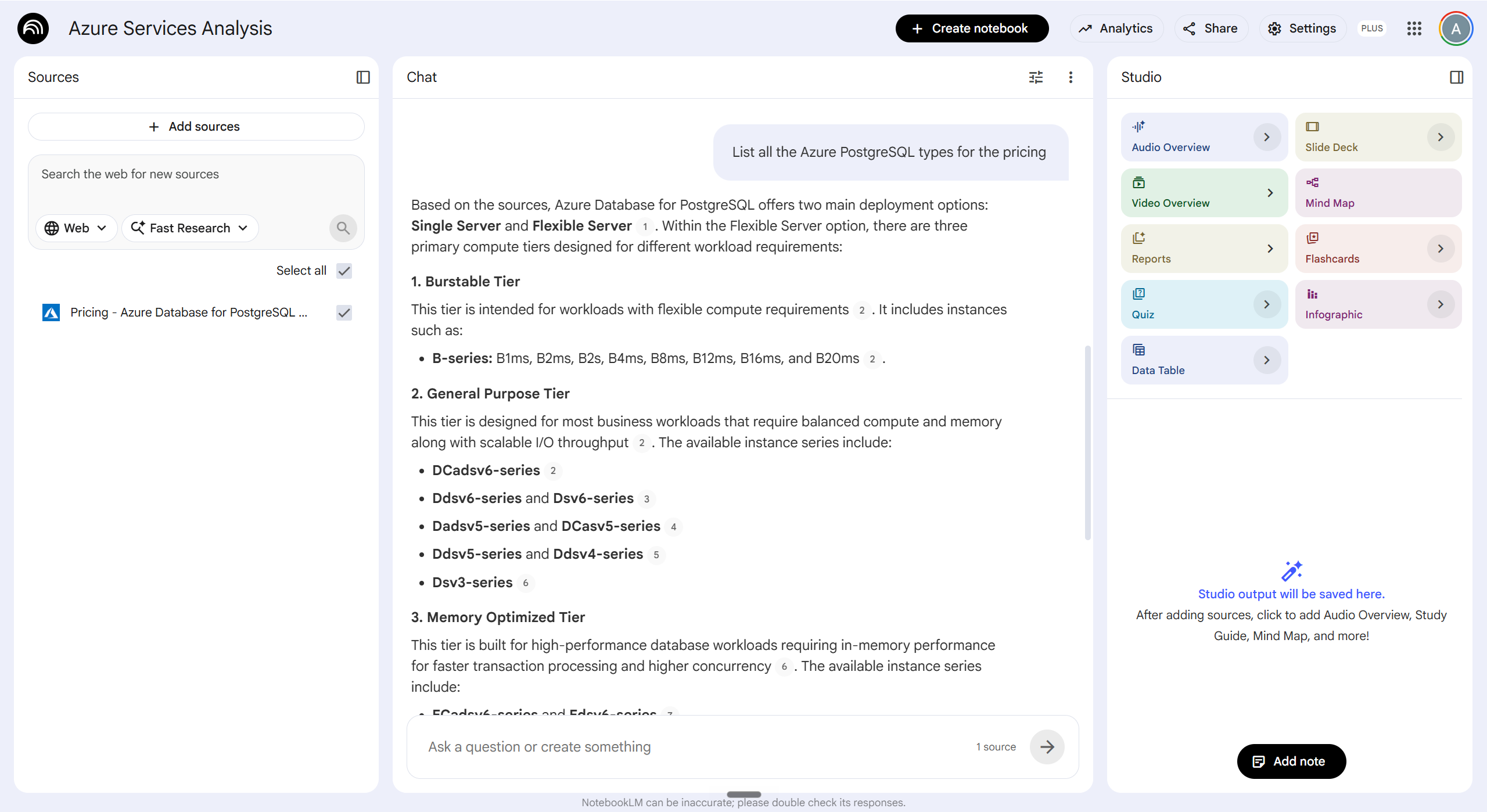
Then you ask questions:
- "What does this RFC say about authentication?"
- "Compare the proposed approaches in these three architecture documents."
- "Summarize the key risks called out in this security audit."
Answers come back grounded in your actual sources, with citations pointing to the specific passages.
This is especially useful when you're researching a new technology stack, evaluating vendors, or onboarding into a complex domain. Instead of reading 200 pages before you can ask a single intelligent question, you can start asking immediately and let NotebookLM surface the relevant context.
Pricing: Free tier with generous limits (includes NotebookLM Plus). More limits are included with Google AI Plus at $7/month or Google AI Pro at $20/month.
Get started with NotebookLM here.
6. Eraser.io
Drawing architecture diagrams by hand or dragging boxes around in Draw.io or Lucidchart is one of the slowest parts of the architect's job.
You spend 30 minutes lining up rectangles, picking colors, adjusting arrows, and exporting a PNG. Two weeks later, the system has changed, and your beautiful diagram is already outdated.
Eraser.io takes a different approach: diagram-as-code.
You describe your architecture in plain text: services, dependencies, and flows, and Eraser renders the diagram automatically. Change the text, and the diagram updates.
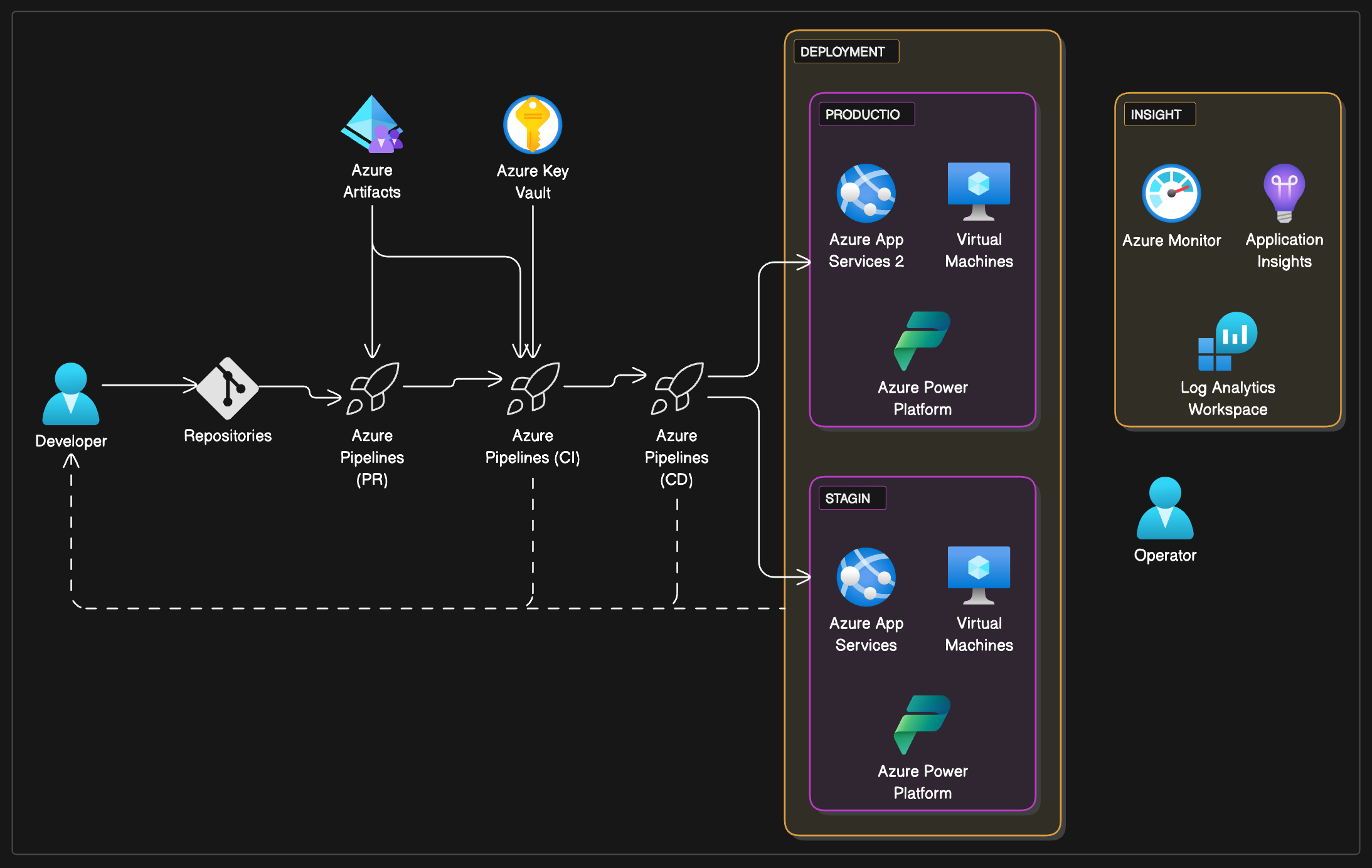
Here is what this unlocks for .NET teams:
- AI-generated diagrams — describe what you want in natural language, and Eraser produces the diagram code for you. You can get a clean diagram in under a minute.
- Version control — your diagrams live alongside your code in Git. You can review them in pull requests, track changes over time, and keep them in sync with the system they describe.
- Consistency across the team — when diagrams are code, they follow the same conventions everywhere. No more "everyone's architecture diagram looks different".
- Easy updates — when your architecture changes, you edit a few lines of text instead of redrawing the whole diagram.
This is the same shift that infrastructure went through a decade ago, when it moved from clicking around the Azure or AWS console to writing Terraform code. Diagrams are following the same path, and the productivity gain is just as real.
If your team is wrestling with how to structure projects in a way that also makes architecture easier to communicate, see N-Layered vs Clean vs Vertical Slice Architecture article.
Pricing: Free tier with up to 3 files and 5 AI diagrams. Starter at $15/user/month.
Get started with Eraser.io here.
Bonus: Excalidraw is the easiest tool to draw hand-style diagrams. Great for whiteboarding, quick sketches in design reviews, and architecture diagrams that don't need to look corporate.
7. Wispr Flow
Typing is slower than thinking. Always has been. You can type for a maximum of 80 words per minute, and you can talk for 150+ words per minute.
Wispr Flow is a voice-to-text tool that runs system-wide. You hold a hotkey, speak, and your words appear cleanly formatted in whatever app you're using — IDE, Slack, email, GitHub issues, AI chat, etc.
What makes it different from older dictation tools is that it learns from your edits. Over time, it adapts to your vocabulary, your technical terms, and your writing style.
For developers, the practical impact is significant. Writing speed jumps from around 80 words per minute to over 150-200. Code reviews, design docs, Slack threads, and emails all take noticeably less time.
If you spend more than an hour a day typing prose (and most developers do), this is the tool that pays for itself in the first week.
Pricing: Free Basic plan with a 2,000 words/week limit. Pro at $15/month billed monthly, or $12/month billed annually. New accounts get a 14-day Pro trial.
Get started with Wispr Flow here.
P.S.: It's my referral link, you can use it to get 1 month for free. And if you dictate 2000 words, I will also get 1 month free.
8. Granola
Meeting notes are usually one of two things: nothing, or a wall of useless transcript.
Granola lands in the middle. It captures your meetings, but it produces actual notes: summaries, decisions, action items, instead of a 4,000-word transcript that no one will ever read.
The key difference from older tools is that Granola does not join your call as a bot, like Fireflies.
There's no awkward "Granola has joined the meeting" notification, no extra participant in the attendee list, no compliance conversations with your security team.
It runs quietly in the background, captures the audio, and produces clean notes afterward.
For tech leads and architects who spend half their week in meetings, this turns one of the most draining parts of the job into something manageable.
Pricing: Free plan covers your first 25 meeting notes. Paid starts at $14/user/month.
Get started with Granola here.
9. Grammarly
Developers write a lot more than code.
Pull request descriptions, design docs, Slack messages, emails to stakeholders, release notes, blog posts, LinkedIn updates — your week is full of writing. And for many of us, English is not our first language.
Grammarly is the tool that quietly fixes this in the background.
It runs everywhere you type — in your browser, in your IDE, in Slack, in Gmail, in Word, in Notion. As you write, it points out spelling mistakes, grammar issues, awkward phrasing, and unclear sentences.
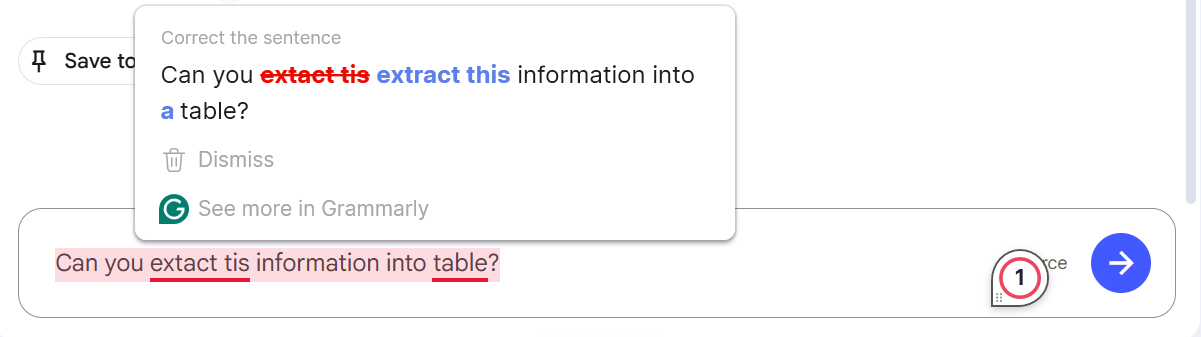
Here is what makes Grammarly worth using in 2026:
- Real-time writing help — fixes typos and grammar mistakes as you type, in any app on your PC
- Tone detection — tells you if your message sounds harsh, unsure, or formal. Very useful before you send that tense Slack reply
- Rewrites with AI — highlight a paragraph, ask Grammarly to make it shorter, clearer, or more professional, and it rewrites it for you
- Consistent style across the team — set a team style guide once, and everyone's writing follows the same rules
- Plagiarism and AI-content checks — useful when you publish blog posts, internal RFCs, or technical articles
For tech leads and architects, Grammarly removes a small but constant tax on every message you send. Your writing reads cleaner, your ideas land faster, and you stop second-guessing every email.
If English is your second or third language, the impact is even bigger. You sound like a confident native speaker without spending hours editing your own text.
Pricing: Free plan covers core spelling, grammar, and basic suggestions. Pro plan at $12/month billed annually, or $30/month billed monthly.
Get started with Grammarly here.
10. Gamma
Building slide decks in PowerPoint or Google Slides is one of the slowest parts for anyone.
You spend hours picking layouts, lining up boxes, choosing fonts, and exporting images. By the time the deck looks good, the meeting is tomorrow, and you still haven't finished the content.
Gamma flips this on its head.
You describe what you want: a topic, an outline, or a rough draft — and Gamma generates a full slide deck for you in under a minute. Clean layouts, matching colors, real content, and visuals. All done.
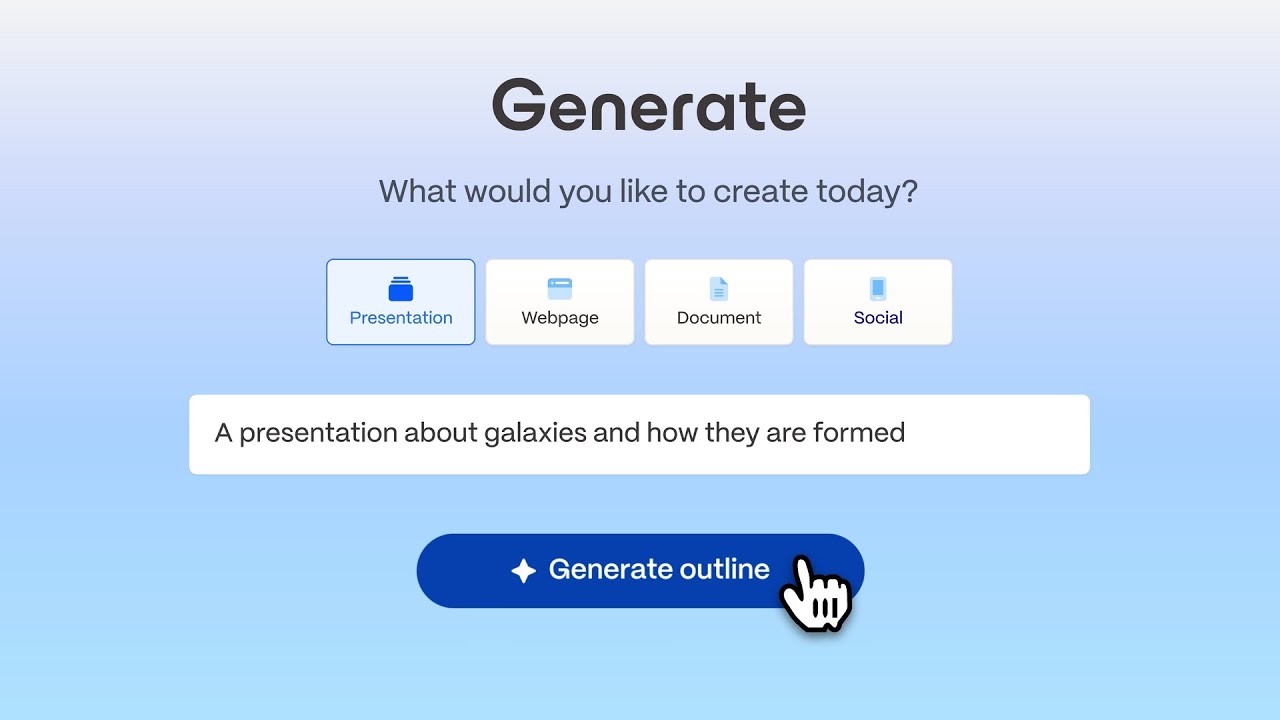
Then you edit it like a document, not like a slide tool. No more dragging boxes pixel by pixel.
Here is what Gamma gives you:
- AI-generated decks from a prompt — type "10 slides on our new payments architecture for a tech audience" and get a real first draft in seconds
- Generate from your own content — paste a design doc, an RFC, or a Markdown file, and Gamma turns it into a slide deck that follows your text
- Built-in image and chart generation — Gamma creates illustrations, diagrams, and charts that fit each slide, so you don't go hunting for stock photos
- Smart layouts — drop in a heading or a bullet list and Gamma picks a layout that looks good. No manual alignment work
- Webpages and documents too — the same engine can produce one-page websites, internal docs, and social posts from the same content
- Easy sharing — every deck has a live link, works on any device, and updates in real time when you edit it
For architects and tech leads, Gamma is a real time-saver.
There are also connectors to Gamma from Claude and Codex, so you can delegate the diagram generation to AI based on your current session, your code, BRD, etc.
Pricing: Free plan with 400 AI credits (about 10 presentations) and Gamma branding on outputs. Plus at $9/user/month (annual billing), Pro at $18/user/month.
Get started with Gamma here.
What to Pick
You don't have to buy every tool on this list. The right stack depends on your budget and how much you lean on AI every day.
Here is how I would build a stack at four different price points.
Free ($0/month)
You can go very far without paying anything. The free tiers in 2026 are surprisingly strong.
- JetBrains Rider — free for non-commercial use. Perfect for learning, open source, and personal projects.
- Cursor — free Hobby tier with limited AI requests.
- NotebookLM — free, with most features unlocked.
- Granola — free for your first 25 meeting notes.
- Grammarly — free plan covers spelling, grammar, and basic suggestions.
- Gamma — free with 400 AI credits (about 10 presentations).
- Excalidraw — free hand-style diagrams.
I would skip:
- Wispr Flow - 2000 free words per month is too small
- Eraser.io - only 3 diagrams
This stack costs nothing and still covers code, diagrams, meetings, writing, and slides. It's a great starting point if you want to test these tools before you commit.
$50/month — the smart starter stack
If you can spend up to $50/month, put it where it matters most: AI coding.
- ChatGPT Plus — $20/month for Codex. Use heavy coding tasks and planning
- Cursor — $20/month for most coding tasks.
- Wispr Flow Pro — $12/month annual. Pays for itself in the first week if you type a lot.
- Free tiers of NotebookLM, Granola, Grammarly, Eraser.io.
Total: $52/month. You get serious AI coding power and fast voice-to-text.
$100/month — the productive professional stack
At $100/month, you cover almost every part of your workflow.
- Claude Pro — $20/month. This is the single most valuable upgrade you can make as a .NET developer
- ChatGPT Plus — $20/month for Codex. Gives you Codex as a strong second AI agent when you run out of Claude limits
- Wispr Flow Pro — $12/month annual.
- Granola Business — $14/user/month.
- Grammarly Pro — $12/month annual.
- Gamma Plus — $9/month annual.
- Google AI Plus — $7/month for NotebookLM Plus and more.
Total: $94/month. You have two AI coding agents, full meeting capture, polished writing, slide generation, and a smart research assistant.
$500/month — heavy lifting for serious work
If you ship production code every day and your time is worth real money, the $500 tier removes every limit.
- Claude Max — $200/month. The highest Claude Code limit is access to Opus 4.7 1M context ($100 Max plan also includes Opus 4.7 1M).
- JetBrains dotUltimate — $219/year (about $18/month) for individual or $609 (about $50/month). Rider plus ReSharper, dotTrace, dotCover, dotMemory, and JetBrains AI Pro.
- Wispr Flow Pro — $12/month annual.
- Granola Business — $14/user/month.
- Grammarly Pro — $12/month annual.
- Gamma Pro — $18/month.
- Eraser.io Business — $25/user/month.
- Google AI Pro — $20/month.
Total: around $350/month. This is the stack for tech leads, architects, and senior engineers who lean on AI all day. The cost is real, but your company can pay for some of the tools.
You can start with Claude Max for $100, which puts the full monthly price around $250.
My personal pick: start from $50/month and get familiar with the tools. And upgrade later for matters more in your projects.
Hope you find this newsletter useful. See you next time.
Comments