
Creating and managing PDF documents is a common and crucial requirement for many applications built with C# and .NET. You may need to generate invoices, reports, agreements, or transform content from web pages and other formats.
There are several C# PDF libraries available, but not all of them are equal.
To ensure you deliver professional documents without lags, you need a reliable PDF library that excels in compliance and professional document rendering.
In this post, we will explore three essential C# PDF libraries every developer must know. We will explore the unique strengths and best use cases for each library. This way, you can confidently choose the right one for your next project.
We will cover:
- IronPDF
- QuestPDF
- PuppeteerSharp
Let's dive in.
IronPDF
IronPDF is a powerful .NET library for creating, editing, signing, and rendering PDFs. It is designed to be developer-friendly: many tasks that are complex in raw PDF APIs or lower-level tools are easier in IronPDF via a more fluent, higher-level API.
Here are the features that make IronPDF unique:
- HTML, DOCX, RTF, XML, MD, Image to PDF Conversion
- PDF FROM URL, PDF to HTML
- Compliant to PDF/A, PDF/UA, and PDF/X standards
- Fully managed and cross-platform
- High-performance rendering
- Digital Signatures & Security
- Rich PDF Manipulation (edit, merge, split PDFs)
Converting HTML to PDF with IronPDF
IronPDF allows converting HTML and CSS into pixel-perfect PDFs quickly and easily.
IronPDF is built on top of a real Chromium rendering engine (the same engine used by Google Chrome), which ensures high accuracy and fast rendering of web content into PDFs. It efficiently handles complex HTML, CSS, and even JavaScript-rendered content.
IronPDF is extremely easy to get started with — install the following NuGet package:
bashdotnet add package IronPdf
With IronPDF, you can create a PDF document from HTML content in just three lines of code:
csharpusing IronPdf; var htmlContent = @" <html> <head> <style> h1 { color: blue; } p { font-size: 16px; } </style> </head> <body> <h1>Invoice 1000471</h1> <p>Test invoice</p> </body> </html>"; // Create a PDF from HTML content var renderer = new ChromePdfRenderer(); var pdf = renderer.RenderHtmlAsPdf(htmlContent); pdf.SaveAs("Invoice.pdf");
For more professional and complex documents, you can use Razor views or another templating engine. And then convert the HTML to PDF. I explained how to do this - in this article.
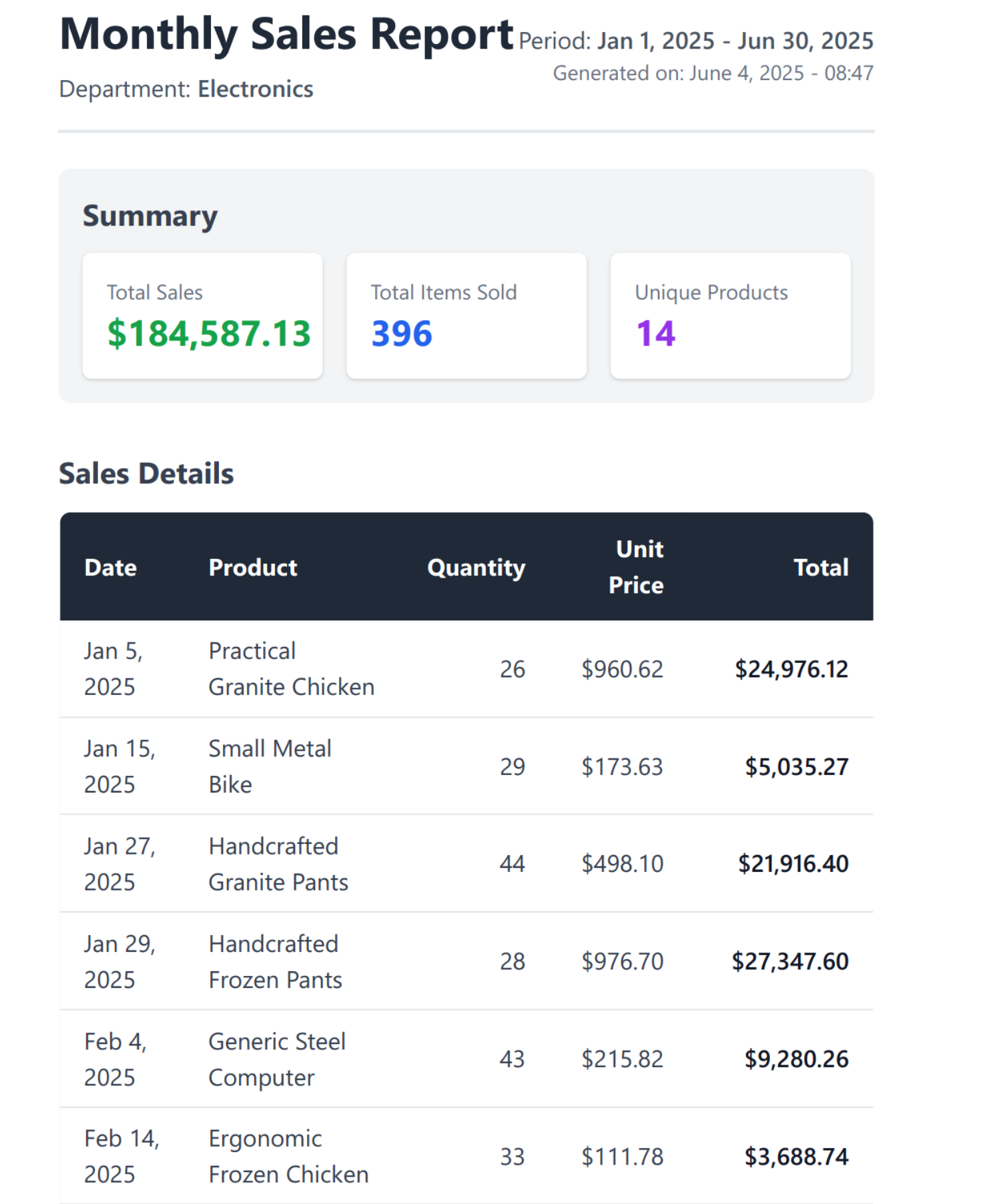
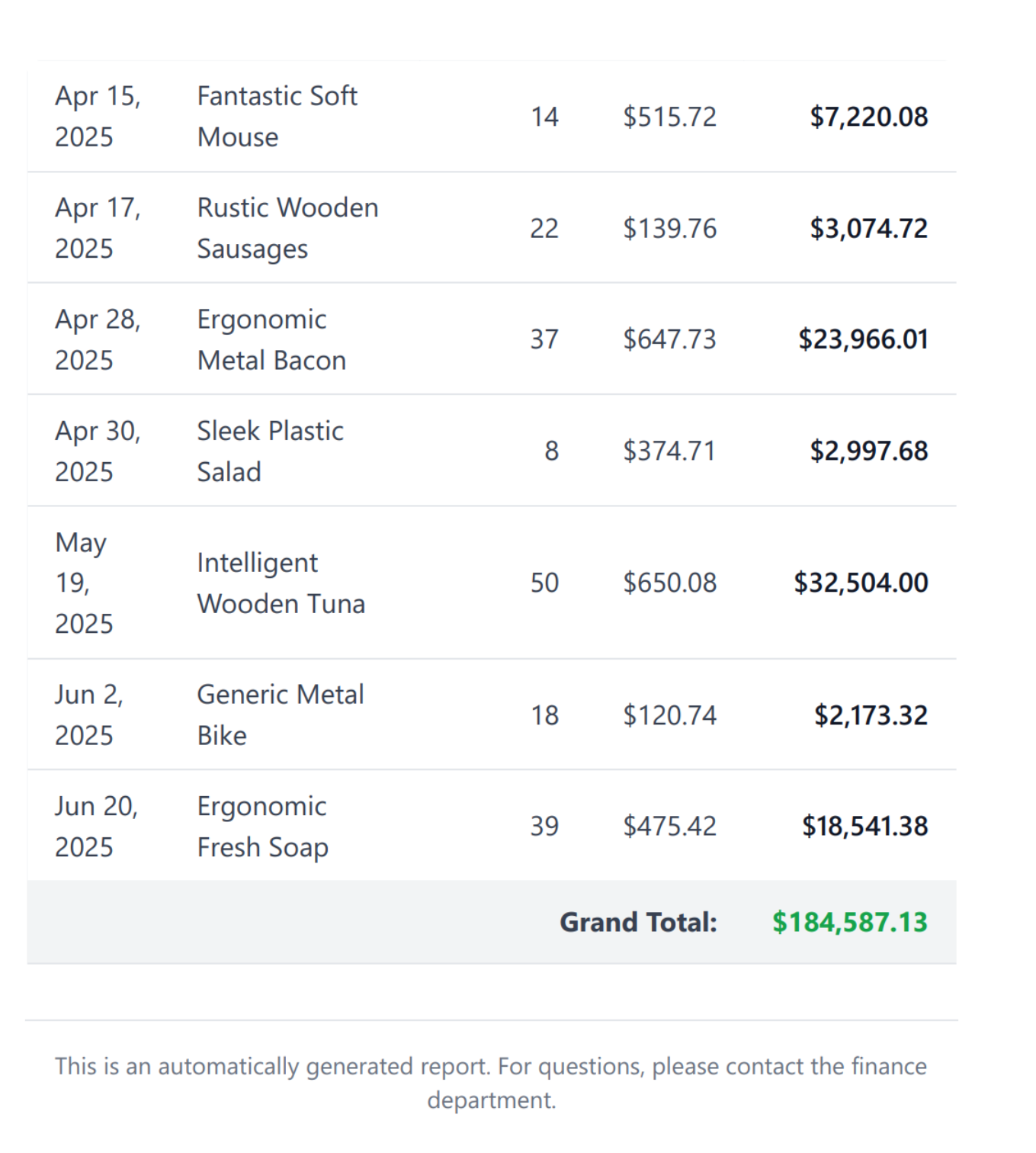
You can see a few examples of complex PDF documents created from HTML:
Creating Compliant PDFs with IronPDF: PDF/A and PDF/UA
In some industries, regulations and accessibility standards often require that documents follow strict formats. Two of the most important standards are PDF/A and PDF/UA.
PDF/A (PDF for Archiving) ensures that a document can be stored long-term without losing fonts, colors, or layout. It is often required for contracts, invoices, and government filings.
PDF/UA (Universal Accessibility) ensures that a document is accessible to everyone, including individuals who rely on screen readers or other assistive technologies. This is important for accessibility compliance.
With IronPDF, you can create both PDF/A and PDF/UA documents in just a few lines of code. It uses the Chromium engine to render HTML and CSS, then exports the result into the required compliant format.
IronPDF supports export of PDFs to the PDF/A-3b standard. PDF/A-3b is a strict subset of the ISO PDF specification used to create archival versions of documents that guarantee rendering exactly the same as when they were saved.
PDF/A-3b allows for the embedding of additional files, such as XML or CSV, within the document.
You can use the SaveAsPdfA method and specify the PDF/A version:
csharpusing IronPdf; var renderer = new ChromePdfRenderer(); var pdf = renderer.RenderHtmlAsPdf(htmlContent); pdf.SaveAsPdfA("Invoice.pdf", PdfAVersions.PdfA3b);
The "b" level ensures that the visual appearance is preserved, which is usually required for archiving.
You can use the SaveAsPdfUA method to create a PDF that follows the PDF/UA standard:
csharpusing IronPdf; var renderer = new ChromePdfRenderer(); var pdf = renderer.RenderHtmlAsPdf(htmlContent); pdf.SaveAsPdfUA("Invoice.pdf");
This ensures that the document is appropriately tagged so that assistive technologies can read it.
Editing PDF Documents with IronPDF
In real-world applications, you often need to manipulate existing documents: add new pages, remove old ones, or combine multiple PDFs into a single file.
IronPDF makes these operations simple with an easy-to-use API.
You can load an existing PDF and insert it as a new page:
csharpusing IronPdf; var pdf = PdfDocument.FromFile("Original.pdf"); var coverPage = PdfDocument.FromFile("CoverPage.pdf"); // Insert PDF contentPage.InsertPdf(coverPage, 0); pdf.SaveAs("WithNewPage.pdf");
Removing unwanted pages is just as easy:
csharpusing IronPdf; var pdf = PdfDocument.FromFile("Original.pdf"); // Delete the first page pdf.RemovePage(0); // Delete multiple pages pdf.RemovePages(new int[] { 1, 2 }); pdf.SaveAs("WithoutPages.pdf");
Need to reuse content from one PDF in another? You can copy pages:
csharpusing IronPdf; var source = PdfDocument.FromFile("Source.pdf"); var copyOfPageOne = source.CopyPage(0); // Copy multiple pages into a new PDF object var copyOfFirstThreePages = source.CopyPages(new List<int> { 0, 1, 2 }); copyOfFirstThreePages.SaveAs("WithCopiedPages.pdf");
You can combine several PDF files into one document:
csharpusing IronPdf; var merged = PdfDocument.Merge( [ PdfDocument.FromFile("Part1.pdf"), PdfDocument.FromFile("Part2.pdf"), PdfDocument.FromFile("Part3.pdf") ] ); merged.SaveAs("Merged.pdf");
If you need to split a large PDF into smaller parts, IronPDF makes it straightforward:
csharpusing IronPdf; var pdf = PdfDocument.FromFile("BigFile.pdf"); // Extract the first page into a new file var part1 = pdf.CopyPage(0); part1.SaveAs("SplitPage1.pdf"); // Extract a range of pages var part2 = pdf.CopyPages(1, 3); part2.SaveAs("SplitPages2to4.pdf");
For more information, refer to the official documentation.
Signing PDF Documents with IronPDF
When working with sensitive documents, security is just as important as generating the PDF itself. IronPDF provides everything you need to sign documents, protect them with passwords, manage permissions, and sanitize files to remove hidden risks.
These features ensure your PDFs are secure for business, legal, and compliance purposes.
Digital signatures prove the authenticity of a document. With IronPDF, you can sign using a certificate (.pfx or .p12) and add details like the signer's name, location, or even an image:
csharpusing IronPdf; var pdf = PdfDocument.FromFile("Contract.pdf"); // Create a PdfSignature object directly from the certificate file and password. var signature = new PdfSignature("IronSoftware.pfx", "123456"); signature.SignatureDate = DateTime.Now; signature.SigningContact = "[email protected]"; signature.SigningLocation = "Chicago, USA"; signature.SigningReason = "Contractual Agreement"; signature.TimeStampUrl = "[http://timestamp.digicert.com](http://timestamp.digicert.com)"; signature.TimestampHashAlgorithm = TimestampHashAlgorithms.SHA256; signature.SignatureImage = new PdfSignatureImage("assets/visual-signature.png", 0, new Rectangle(350, 750, 200, 100)); pdf.Sign(signature); // Save the signed PDF pdf.SaveAs("SignedContract.pdf");
This ensures that the PDF cannot be changed without invalidating the signature.
For more information, refer to the official documentation.
Securing PDF Documents with IronPDF
Sometimes PDFs contain hidden metadata, scripts, or sensitive information. IronPDF can sanitize a document to remove these elements, ensuring a clean and safe file.
csharpusing IronPdf; var pdf = PdfDocument.FromFile("Original.pdf"); // Sanitize the PDF to remove hidden or unsafe data var sanitizeWithBitmap = Cleaner.SanitizeWithBitmap(pdf); sanitizeWithBitmap.SaveAs("Sanitized.pdf");
The trick behind sanitizing a PDF is to convert the PDF document into an image format, which removes JavaScript code, embedded objects, and buttons, and then convert it back to a PDF document. IronPDF provides Bitmap and SVG image types.
SVG sanitizing is faster than Bitmap sanitizing, but the layout might be inconsistent.
Sanitizing is especially useful before sharing documents outside your organization.
IronPDF lets you encrypt PDFs so that they can only be opened with a password:
csharpusing IronPdf; var pdf = PdfDocument.FromFile("Report.pdf"); // Add a password pdf.Password = "StrongPassword123"; // Save the protected file pdf.SaveAs("ProtectedReport.pdf");
And you can easily open a password-protected file:
csharpusing IronPdf; var pdf = PdfDocument.FromFile("ProtectedReport.pdf", "StrongPassword123");
Beyond passwords, you can control what users are allowed to do with the PDF — for example, blocking printing or copying.
csharpusing IronPdf; var pdf = PdfDocument.FromFile("Confidential.pdf"); // Set permissions and owner password pdf.SecuritySettings.OwnerPassword = "OwnerSecret"; pdf.SecuritySettings.AllowUserAnnotations = false; pdf.SecuritySettings.AllowUserCopyPasteContent = false; pdf.SecuritySettings.AllowUserPrinting = PdfPrintSecurity.NoPrint; pdf.SaveAs("Restricted.pdf");
For more information, refer to the official documentation.
Creating PDF Documents with QuestPDF
QuestPDF is a popular open-source PDF generation library for .NET developers. Its primary goal is to simplify PDF creation through a fluent API.
To get started, install the following NuGet package:
bashdotnet add package QuestPDF
Here is how you can create a PDF document with QuestPDF:
csharpusing QuestPDF.Fluent; using QuestPDF.Helpers; using QuestPDF.Infrastructure; var pdf = Document.Create(container => { container.Page(page => { page.Size(PageSizes.A4); page.Margin(2, Unit.Centimetre); page.PageColor(Colors.White); page.DefaultTextStyle(x => x.FontSize(14)); page.Header() .Text("Monthly Sales Report") .SemiBold() .FontSize(20) .FontColor(Colors.Blue.Medium); page.Content() .Column(x => { x.Spacing(10); x.Item().Text("Generated on: " + DateTime.Now.ToShortDateString()); x.Item().Text("Total Sales: $15,450"); x.Item().Text("Best-selling product: Wireless Headphones"); }); page.Footer() .AlignCenter() .Text(x => { x.Span("Page "); x.CurrentPageNumber(); }); }); }); pdf.GeneratePdf("MonthlySalesReport.pdf");
Why Developers Use QuestPDF:
- Fluent C# API — build documents directly in code using a layout-based approach.
- Consistent layouts — predictable, repeatable output for structured documents.
- Good documentation — with many examples and patterns for reports.
What QuestPDF Lacks:
QuestPDF is not a complete replacement for a Chromium rendering engine, such as IronPDF. It does not support:
- HTML-to-PDF conversion — unable to convert HTML content directly into PDFs, limiting versatility in web applications.
- Compliance standards — no built-in support for PDF/A (archival) or PDF/UA (accessibility).
- Digital signatures or security — no native features for signing, password protection, or permissions.
- Interactive forms or JavaScript rendering — limited scope to static layouts only.
QuestPDF is a solid choice for simple use cases but may fall short in enterprise-grade scenarios. More complex documents require more code and more time to develop than creating it from HTML-to-PDF conversion.
In such cases, developers often turn to more powerful libraries, such as IronPDF.
Puppeteer Sharp
Puppeteer Sharp is a .NET port of the official Node.js Puppeteer API.
It lets you drive Chromium/Chrome from C# over the DevTools Protocol: open pages, run JavaScript, wait for selectors, take screenshots, and print pages to PDF.
It runs headless by default and can also connect to a remote browser.
To get started with Puppeteer Sharp, install the following NuGet package:
bashdotnet add package PuppeteerSharp
Here is how you can create a PDF from HTML using Puppeteer Sharp:
csharpusing System.Threading.Tasks; using PuppeteerSharp; // 1) Ensure a Chromium binary is available (downloads if missing) var browserFetcher = new BrowserFetcher(); await browserFetcher.DownloadAsync(); // 2) Launch headless Chromium await using var browser = await Puppeteer.LaunchAsync(new LaunchOptions { Headless = true }); // 3) Create a new page and inject your HTML await using var page = await browser.NewPageAsync(); await page.SetContentAsync(htmlContent); // 4) Print to PDF with options await page.PdfAsync("Report.pdf", new PdfOptions { Format = PaperFormat.A4, PrintBackground = true, MarginOptions = new MarginOptions { Top = "20mm", Right = "15mm", Bottom = "20mm", Left = "15mm" } });
Puppeteer-Sharp will download a compatible Chrome build into an output folder when you run your application for the first time.
Puppeteer Sharp is good at printing real web pages (including dynamic, JS-rendered content) to PDF using the Chromium engine with various options.
What Puppeteer-Sharp Lacks:
Puppeteer-Sharp is a browser automation library, and not a .NET-native PDF SDK.
While it excels at rendering HTML into PDFs, it is not a full-featured .NET PDF SDK. It does not support:
- Compliance standards — no built-in features for creating PDF/A (archival) or PDF/UA (accessible) documents.
- PDF editing — no tools for merging, splitting, or modifying existing PDFs.
- Digital signatures & security — lacks password protection, encryption, or signing capabilities.
Puppeteer-Sharp is free and open-source, making it a good option for developers who want to experiment with PDF generation without licensing costs.
Licensing
IronPDF:
IronPDF follows a commercial licensing model.
- Free trial available: You can start with a trial license to explore features.
- Commercial licenses required for production: Businesses and organizations must obtain a license before deploying IronPDF in production.
- Support and updates included: A license comes with access to updates, bug fixes, and professional technical support.
IronPDF does not have a free open-source tier. However, it provides enterprise-grade features such as PDF/A and PDF/UA compliance, digital signatures, and document security, which are often required in professional and regulated environments.
IronPDF offers the best support, helping developers quickly resolve issues — a feature that other PDF libraries often lack.
QuestPDF:
QuestPDF is open-source but requires a license:
- Free for personal and non-commercial use: Anyone can use QuestPDF at no cost for personal projects, learning, or non-commercial purposes.
- Commercial use requires a license: If you're building software for a company, clients, or profit, you need to purchase a commercial license (based on company size).
Note: QuestPDF now requires a commercial license even for small companies.
What about Aspose.PDF?
Aspose.PDF was the most popular PDF library until the release of IronPDF.
Aspose.PDF, while powerful, takes a more traditional approach. It constructs PDFs programmatically or parses and manipulates existing ones, but doesn't use Chromium (or another web engine) for rendering. As a result, while it offers manual control over each aspect, it's often slower and more resource-intensive when working with rich layouts or conversions.
IronPDF can provide a 2-4x performance boost over Aspose.PDF, with reduced memory usage.
IronPDF offers a license at a much more affordable price and provides more benefits than Aspose, which is honestly very overpriced.
You read the detailed comparison here.
Summary
Choosing the right PDF library in .NET depends on your project's needs.
- IronPDF stands out for professional use cases where compliance, security, and pixel-perfect rendering are essential. It offers PDF/A and PDF/UA support, digital signatures, sanitization, and strong customer support — making it ideal for any company.
- QuestPDF is a good choice for developers who want to design structured, layout-driven reports with a fluent C# API. It is free for personal and non-commercial use, but commercial use requires a paid license, even for small companies. It's simple to learn, but it lacks compliance, security, and HTML-to-PDF conversion.
- Puppeteer-Sharp is excellent when you need to render dynamic HTML, CSS, and JavaScript into PDFs with Chromium. It's completely free, but it's not a .NET-native SDK and does not cover compliance, editing, or security.
- Aspose.PDF deserves a short mention as well — it's a heavyweight commercial tool, but for most scenarios IronPDF provides more value and developer experience.
For most professional .NET projects that require trust, compliance, and long-term support, IronPDF is the clear winner.
Although it requires a commercial license, it provides enterprise-grade features, dedicated support, and compliance standards that make it a worthwhile investment.
QuestPDF, on the other hand, is free for personal or non-commercial use only and offers lower-cost licensing options for businesses. Still, it lacks the advanced capabilities and reliability that IronPDF delivers.
Many thanks to IronPDF for sponsoring this blog post.
Hope you find this newsletter useful. See you next time.
Comments