
Working with large files in web applications is a common challenge.
When you need to handle file uploads for video streaming platforms, document management systems, or backup services, standard upload approaches often fail with timeout errors and consume excessive memory. These issues occur when users try to upload files that are hundreds of megabytes or several gigabytes in size.
Azure Blob Storage offers a robust and scalable solution for storing large files in the cloud.
However, the way you implement uploads matters. A simple upload approach that works fine for small files will cause problems when handling a 2GB video file or a 500MB database backup.
In this post, we will explore:
- How to Get Started With Azure Storage and Storing Blobs
- Uploading Files With Simple Upload
- Downloading Files From Blob Storage
- Uploading Large Files by Chunks for Better Performance
Let's dive in.
How to Get Started With Azure Storage and Storing Blobs
Azure Blob Storage is a cloud-based object storage service that allows you to store massive amounts of unstructured data, including documents, images, videos, and backups.
Before you can upload or download files in your .NET application, you need to set up an Azure Storage account and configure access to it.
Before we start, ensure you have an active Azure account to create and manage your resources.
Creating an Azure Storage Account
First, you need to create a storage account in the Azure Portal.
- Log in to the Azure Portal at https://portal.azure.com
- Click "Create a resource" and search for "Storage account"
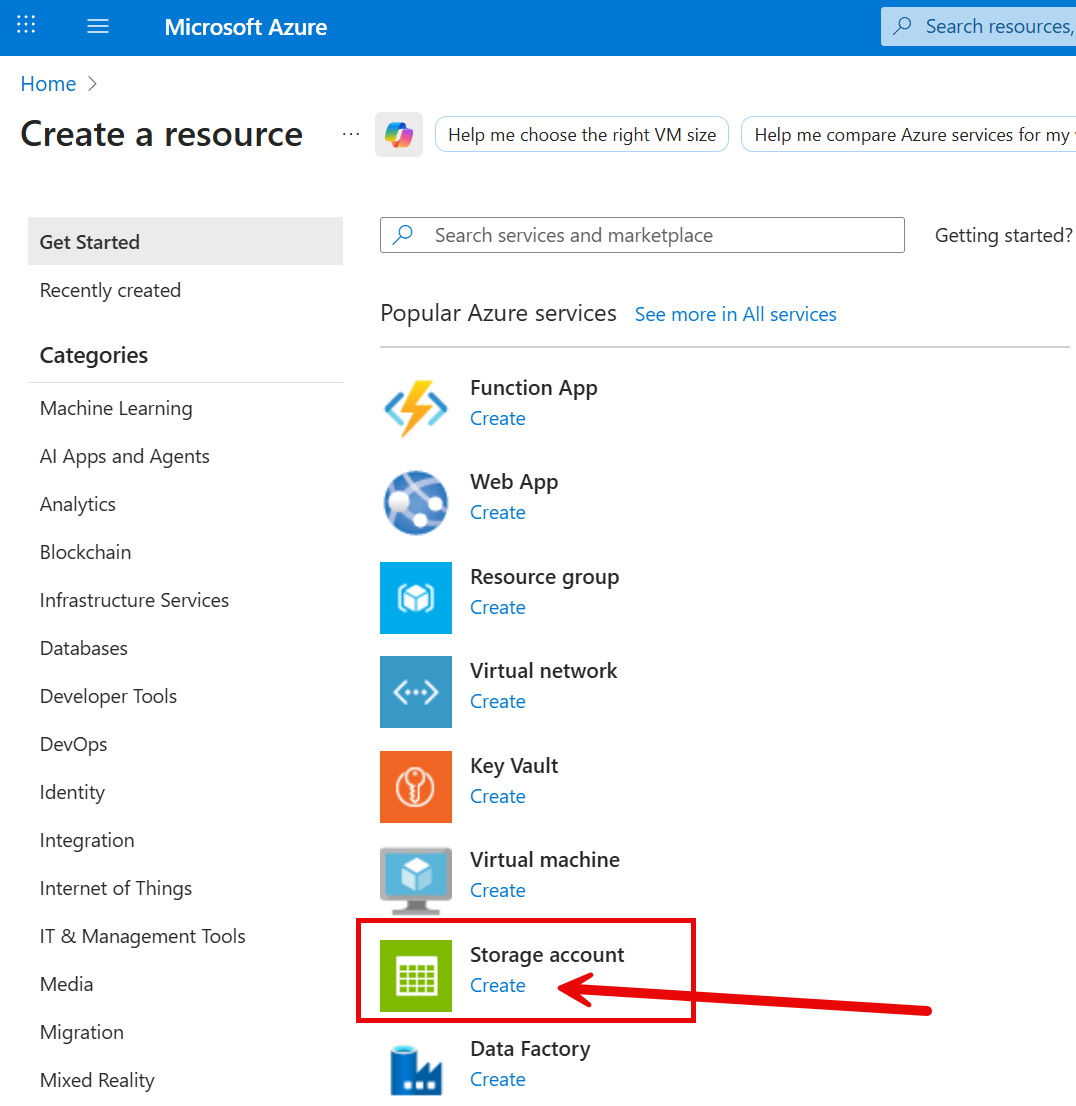
- Click "Create" to start the setup process
- Fill in the required fields:
- Subscription: Select your Azure subscription
- Resource group: Create a new resource group or select an existing one
- Storage account name: Choose a unique name (lowercase letters and numbers only)
- Region: Select the region closest to your users or application
- Preferred storage account type: Leave unchanged for most use cases
- Performance: Choose "Standard" for most use cases (HDD-backed) or "Premium" for high-performance scenarios (SSD-backed)
- Redundancy: Select "Locally-redundant storage (LRS)" for development or "Geo-redundant storage (GRS)" for production
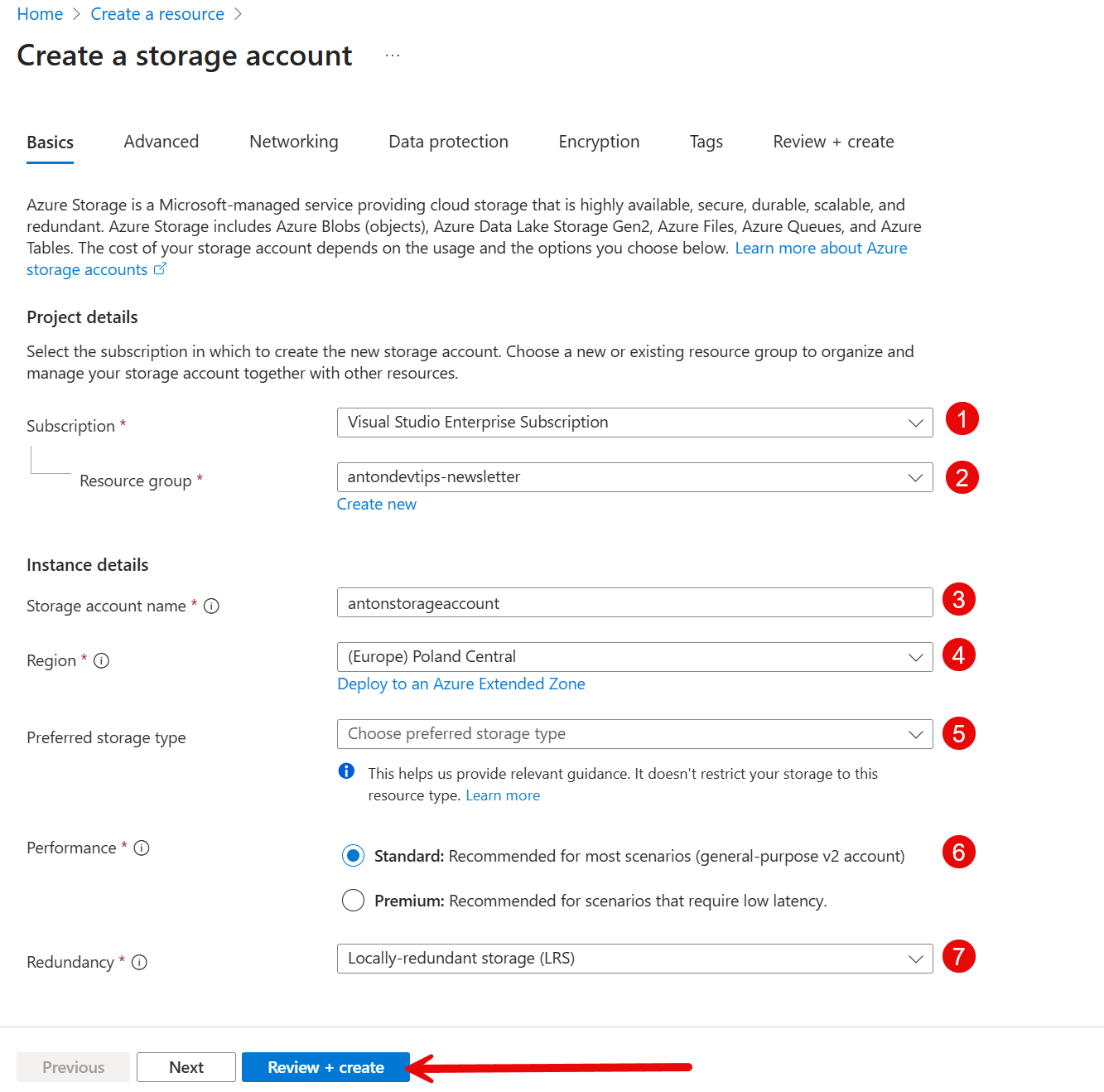
- Click "Review + Create" and then "Create" to provision the storage account
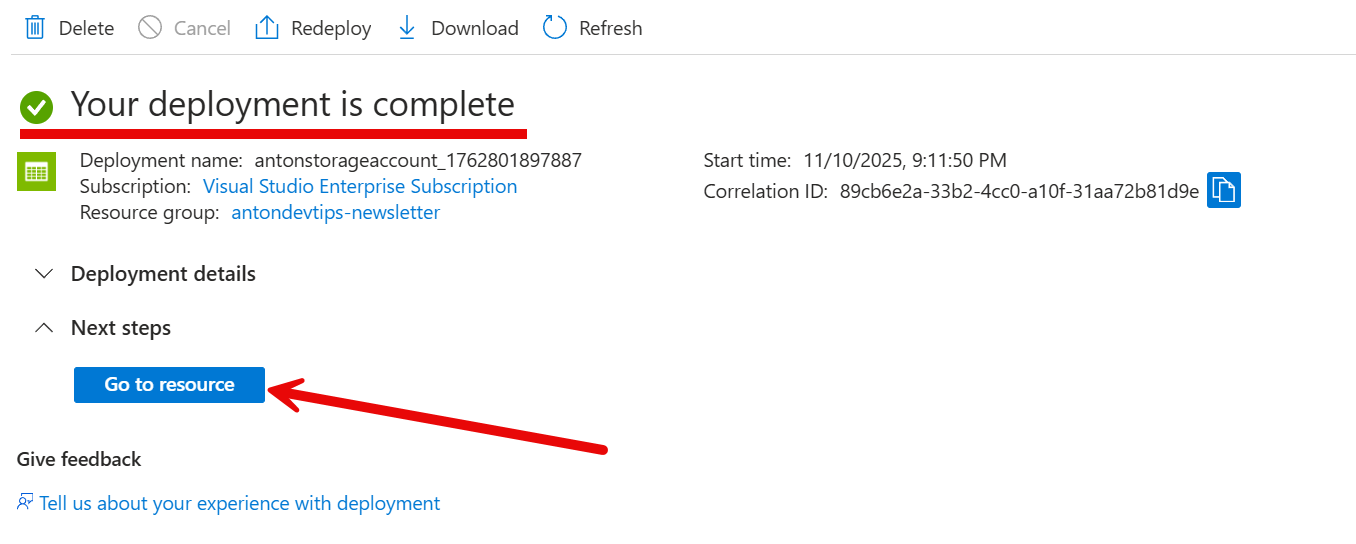
The deployment typically takes 1-2 minutes. Once complete, click "Go to resource" to access your new storage account.
Creating a Blob Container
Azure supports the following types of storage accounts:
- Blob containers
- File shares
- Tables
- Queues
In this post, we will focus on blob containers.
A blob container is similar to a folder that organizes your blobs within a storage account. You need at least one container to store files.
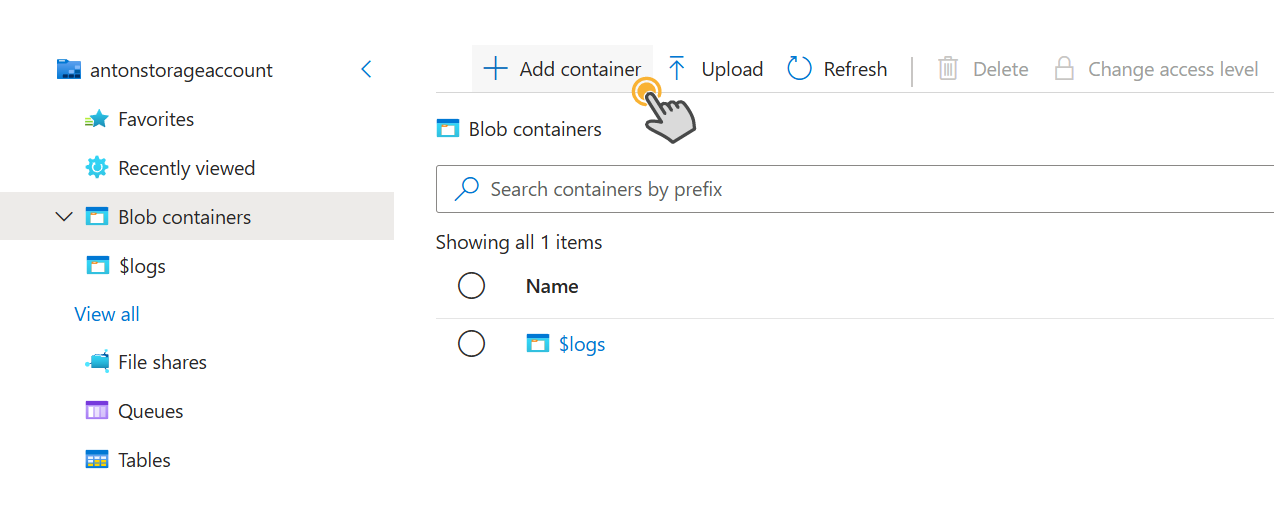
- In your storage account, navigate to "Storage Browser" in the left menu
- Click on "Blob Containers"
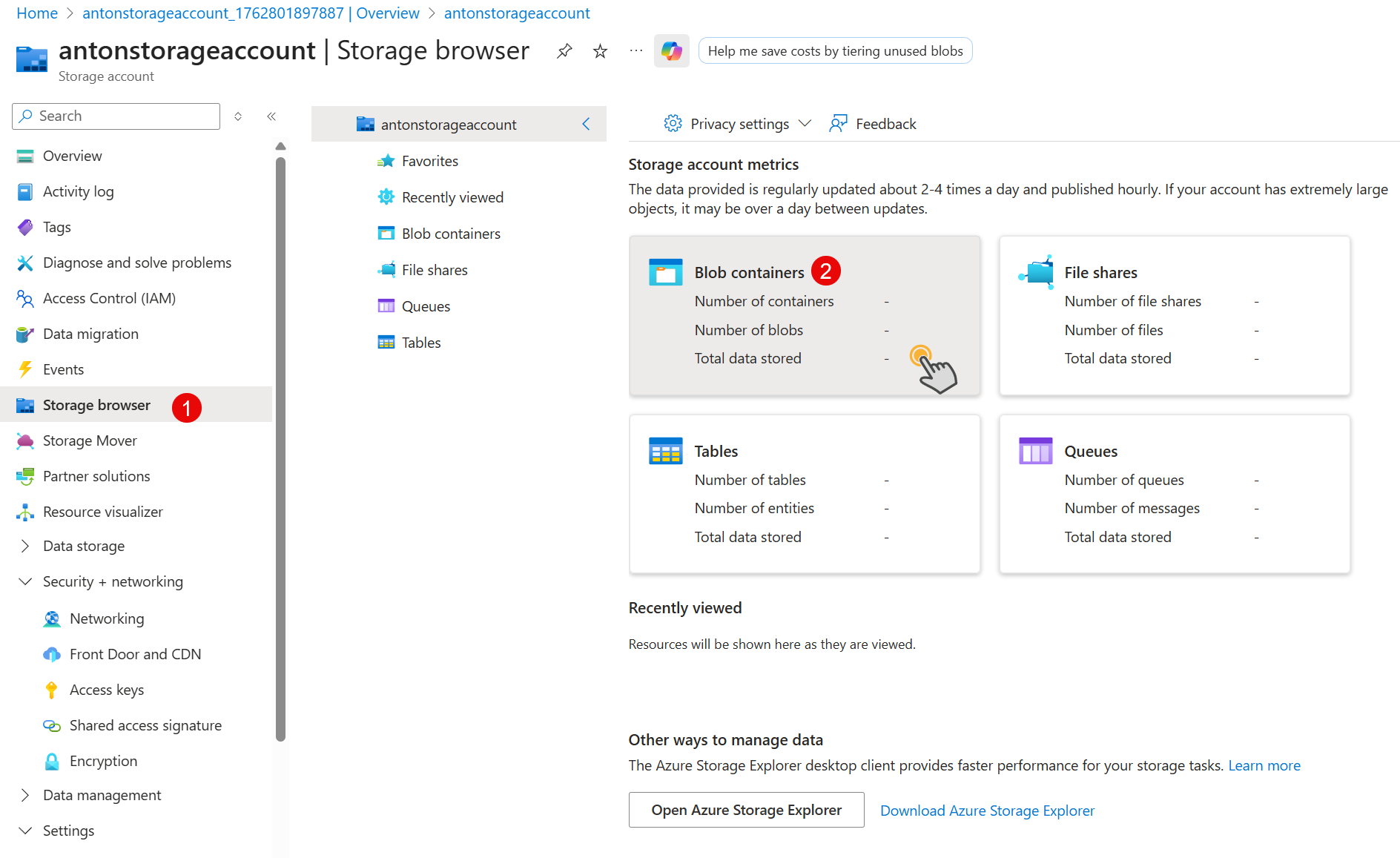
- Click "Add container" in the top menu
-
Enter a container name "mediafiles" and click "create"
-
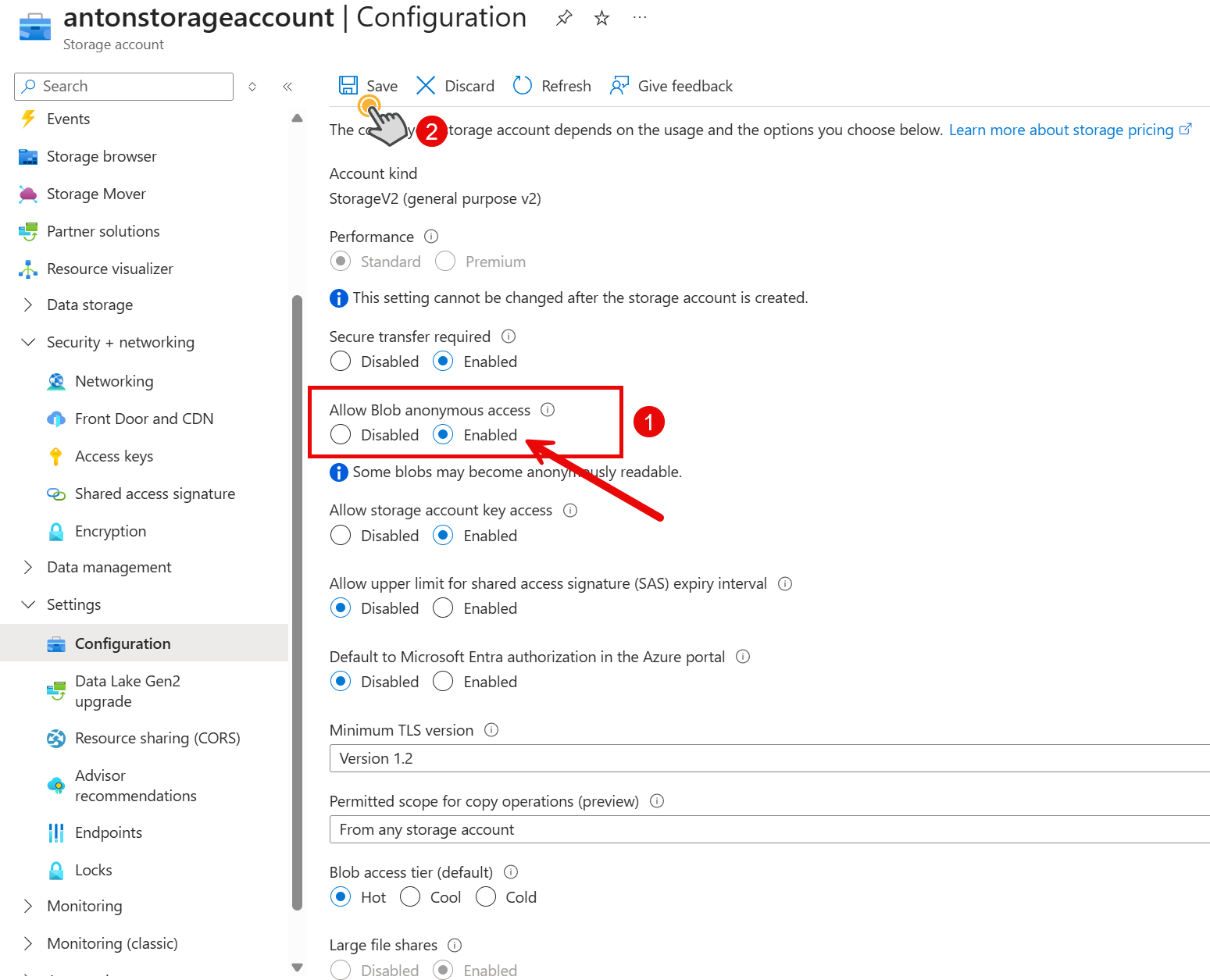
Navigate to "Settings" in the left menu and click "Configuration". You need to enable the "Allow Blob anonymous access" option to download files from the container.
Getting the Connection String
Your .NET application needs a connection string to authenticate and connect to Azure Blob Storage.
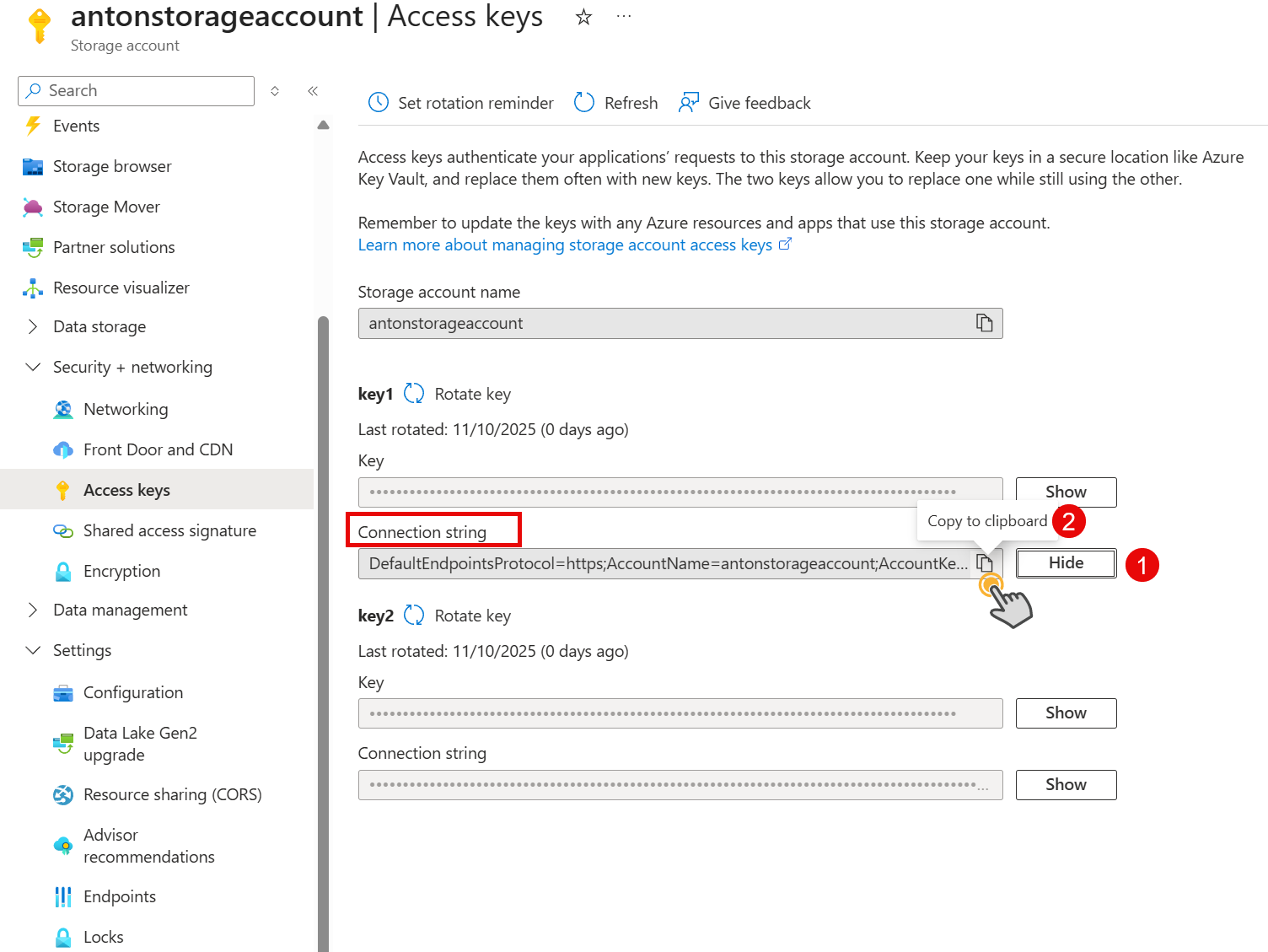
- In your storage account, navigate to "Access keys" under "Security + networking"
- You will see two access keys (key1 and key2). Either one works.
- Click "Show" next to "Connection string" for key1
- Click the copy icon to copy the connection string
Store this connection string securely. Never commit it directly to source control.
Setting Up Your .NET Project
Now let's set up a .NET Web API project to work with Azure Blob Storage.
- Create a new ASP.NET Core Web API project and install the Azure Blob Storage NuGet package:
bashdotnet add package Azure.Storage.Blobs
The Azure.Storage.Blobs package provides the client libraries you need to interact with Azure Blob Storage.
- Add your connection string to the appsettings.json file:
json{ "ConnectionStrings": { "AzureBlobStorage": "<YOUR_AZURE_BLOB_CONNECTION_STRING>" } }
For production, use Azure Key Vault or user secrets to store sensitive configuration instead of appsettings.json.
To use user secrets in development:
bashdotnet user-secrets init dotnet user-secrets set "ConnectionStrings:AzureBlobStorage" "your-connection-string-here"
- Configure dependency injection in your Program.cs:
csharpbuilder.Services.AddScoped(_ => new BlobServiceClient(builder.Configuration.GetConnectionString("AzureBlobStorage")));
- Let's test if our blob storage is working.
Upload a new file via "Storage browser" or the Azure Portal.
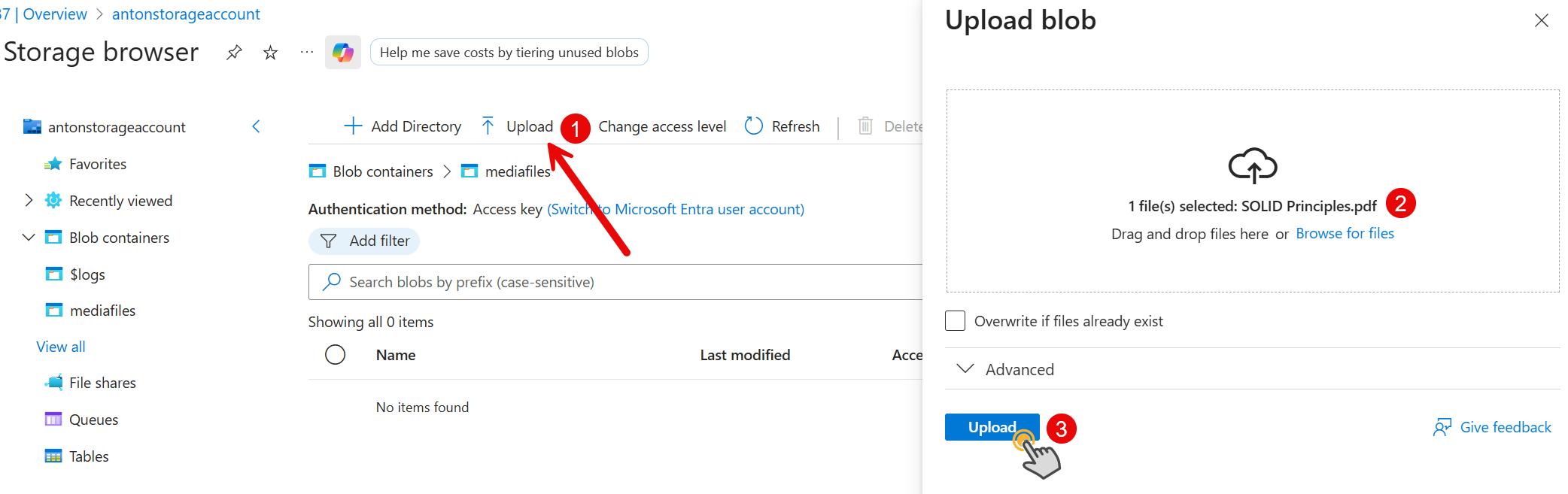
Let's try to access the file from our .NET application.
First, we need to get a "mediafiles" container client from the blob service client. Then we can find all blobs with the "FileName" tag set to "SOLID Principles.pdf".
For each blob, we can get the blob client and print the blob name and URI.
csharpusing (var serviceScope = app.Services.CreateScope()) { var blobServiceClient = serviceScope.ServiceProvider.GetRequiredService<BlobServiceClient>(); var container = blobServiceClient.GetBlobContainerClient("mediafiles"); await foreach (var blobs in container.FindBlobsByTagsAsync("FileName='SOLID Principles.pdf'").AsPages()) { foreach (var blob in blobs.Values) { var blobClient = container.GetBlobClient(blob.BlobName); Console.WriteLine($"Blob name: {blob.BlobName}, Blob URI: {blobClient.Uri}"); } } }
After running our application, we can see that our "SOLID Principles.pdf" is printed to the console.
Now let's implement file upload from our .NET application.
Uploading Files With Simple Upload
The simplest way to upload files to Azure Blob Storage is using the UploadAsync method. This approach works well for small to medium-sized files but has limitations when dealing with large files.
UploadAsync sends the entire file content to Azure Blob Storage in a single HTTP request.
The Azure SDK handles the upload process, and the file is stored as a blob with the specified name.
Let's create the AzureBlobStorageService class.
Before uploading a file, we need to create a container and get a BlobClient for the specified blob name:
csharpusing Azure.Storage.Blobs; using Azure.Storage.Blobs.Models; using Microsoft.Extensions.Options; using UploadDownloadFilesAzureBlobStorage.Configuration; namespace UploadDownloadFilesAzureBlobStorage.Services; public sealed class AzureBlobStorageService : IBlobStorageService { private readonly BlobContainerClient _containerClient; public AzureBlobStorageService( BlobServiceClient blobServiceClient, IOptions<AzureBlobStorageConfiguration> options) { _containerClient = blobServiceClient.GetBlobContainerClient(options.Value.ContainerName); } public async Task<string> UploadSimpleAsync( string blobName, Stream content, string? contentType = null, CancellationToken cancellationToken = default) { var blobClient = _containerClient.GetBlobClient(blobName); var uploadOptions = new BlobUploadOptions { HttpHeaders = new BlobHttpHeaders { ContentType = string.IsNullOrWhiteSpace(contentType) ? "application/octet-stream" : contentType } }; await blobClient.UploadAsync(content, uploadOptions, cancellationToken); return blobClient.Name; } }
Here we create BlobUploadOptions with the content type (defaults to application/octet-stream if not provided).
blobClient.UploadAsync method sends the file to Azure Blob Storage and returns the blob name after successful upload.
We will use the following configuration:
json{ "AzureBlobStorageConfiguration": { "ContainerName": "mediafiles", "UploadChunkSizeBytes": 8388608 } }
csharppublic sealed class AzureBlobStorageConfiguration { public string ContainerName { get; init; } = "files"; // 8 MB default chunk size (we will use this parameter in the next section) public int UploadChunkSizeBytes { get; init; } = 8 * 1024 * 1024; }
We will also need to configure the FormOptions in the ConfigureServices method to MAX out the default limits:
csharpbuilder.Services.Configure<FormOptions>(o => { o.MultipartBodyLengthLimit = long.MaxValue; o.MultipartHeadersLengthLimit = int.MaxValue; });
Now let's create a Controller for file uploads:
csharpusing Microsoft.AspNetCore.Mvc; using UploadDownloadFilesAzureBlobStorage.Services; namespace UploadDownloadFilesAzureBlobStorage.Controllers; [ApiController] [Route("api/[controller]")] public sealed class FilesController(IBlobStorageService blobService) : ControllerBase { [HttpPost("upload")] [RequestSizeLimit(long.MaxValue)] [DisableRequestSizeLimit] [Consumes("multipart/form-data")] public async Task<IActionResult> Upload(IFormFile file, CancellationToken cancellationToken) { if (file.Length == 0) { return BadRequest("File is required."); } await using var stream = file.OpenReadStream(); var uploadedName = await blobService.UploadSimpleAsync(file.FileName, stream, file.ContentType, cancellationToken); return Ok(new { name = uploadedName }); } }
Here we specify [RequestSizeLimit(long.MaxValue)] and [DisableRequestSizeLimit] to allow large file uploads.
We create a stream from the file and pass it to the UploadSimpleAsync method.
Now, let's explore how to download files from Azure Blob Storage.
Downloading Files From Blob Storage
Downloading files from Azure Blob Storage is straightforward. You retrieve the blob as a stream and return it to the client through your API endpoint.
When a client requests a file, your application queries Azure Blob Storage for the blob, retrieves it as a stream, and sends it back to the client. The streaming approach is efficient because it does not load the entire file into memory at once.
Azure Blob Storage supports streaming downloads, which means you can start sending data to the client as soon as the first bytes arrive from Azure, without waiting for the complete file to download.
Let's add the download methods to your AzureBlobStorageService class:
csharppublic async Task<Stream> DownloadAsync( string blobName, CancellationToken cancellationToken = default) { var blobClient = _containerClient.GetBlobClient(blobName); if (!await blobClient.ExistsAsync(cancellationToken)) { throw new FileNotFoundException($"Blob '{blobName}' not found."); } var response = await blobClient.DownloadStreamingAsync(cancellationToken: cancellationToken); return response.Value.Content; }
And a download endpoint to the FilesController:
csharp[HttpGet("{fileName}")] public async Task<IActionResult> Download([FromRoute] string fileName, CancellationToken cancellationToken) { if (string.IsNullOrWhiteSpace(fileName)) { return BadRequest("File name is required."); } try { var stream = await blobService.DownloadAsync(fileName, cancellationToken); return File(stream, "application/octet-stream", fileName); } catch (FileNotFoundException e) { return NotFound($"File {fileName} not found."); } }
We can also add the enableRangeProcessing parameter to the File method to enable range requests for our Web API clients:
csharpreturn File(stream, "application/octet-stream", fileName, enableRangeProcessing: true);
Uploading Large Files by Chunks for Better Performance
Chunked upload is the recommended approach for uploading large files to Azure Blob Storage. Instead of uploading the entire file in one request, you split the file into smaller blocks and upload them separately.
This approach solves the memory and timeout problems that occur with simple uploads when handling files larger than 100MB.
The 100MB value is subjective and depends on the size of your files and the memory available on your server.
Why is a chunked upload better for large files?
When you upload a 2GB video file using simple upload, your application needs to load the entire 2GB into memory before sending it to Azure.
This causes several problems:
- Memory exhaustion: Loading large files into memory can cause OutOfMemoryException errors, especially when multiple users upload files simultaneously.
- Request timeouts: Large files take longer to upload, and the HTTP request might timeout before completion.
- Network failures: If the upload fails after 90% completion, you need to restart from the beginning and waste bandwidth.
Chunked upload solves these problems by:
- Processing the file in small chunks (typically 4-8MB each) that fit comfortably in memory
- Uploading each chunk independently with automatic retry for failed chunks
- Allowing parallel chunk uploads for faster overall upload times
- Providing better progress tracking and resumable uploads
Let's implement chunked upload in our AzureBlobStorageService:
csharppublic async Task<string> UploadChunkedAsync(string blobName, Stream content, string? contentType = null, CancellationToken cancellationToken = default) { var blockBlobClient = _containerClient.GetBlockBlobClient(blobName); var blockIds = new List<string>(); var buffer = ArrayPool<byte>.Shared.Rent(_uploadChunkSize); try { var index = 0; int bytesRead; while ((bytesRead = await content.ReadAsync(buffer.AsMemory(0, _uploadChunkSize), cancellationToken)) > 0) { var blockId = Convert.ToBase64String(BitConverter.GetBytes(index)); using var blockStream = new MemoryStream(buffer, 0, bytesRead, writable: false, publiclyVisible: true); await blockBlobClient.StageBlockAsync(blockId, blockStream, cancellationToken: cancellationToken); blockIds.Add(blockId); index++; } var headers = new BlobHttpHeaders { ContentType = string.IsNullOrWhiteSpace(contentType) ? "application/octet-stream" : contentType }; await blockBlobClient.CommitBlockListAsync(blockIds, httpHeaders: headers, cancellationToken: cancellationToken); } finally { ArrayPool<byte>.Shared.Return(buffer); } return blockBlobClient.Name; }
Let me break down what this code does.
Instead of allocating a new byte array for each chunk, the code rents a buffer from ArrayPool<byte>.Shared.
This reuses memory and reduces pressure on garbage collection.
We read the input stream in chunks of _uploadChunkSize bytes (default 8MB). The ReadAsync method returns the actual number of bytes read, which might be less than the chunk size for the last chunk.
Each block needs a unique identifier. The code converts the block index to bytes and then to a Base64 string. Azure requires block IDs to be Base64-encoded strings of the same length.
StageBlockAsync uploads each chunk to Azure Blob Storage. The blocks are stored temporarily and are not yet visible as a blob.
After all chunks are uploaded, CommitBlockListAsync combines them into a single blob in the order specified by the blockIds list. This is when the blob becomes visible and accessible.
Finally, we return the rented buffer to the ArrayPool to avoid memory leaks.
To use the new method in the Controller, we need to swap one line:
csharp[HttpPost("upload")] [RequestSizeLimit(long.MaxValue)] [DisableRequestSizeLimit] [Consumes("multipart/form-data")] public async Task<IActionResult> Upload(IFormFile file, CancellationToken cancellationToken) { if (file.Length == 0) { return BadRequest("File is required."); } await using var stream = file.OpenReadStream(); //var uploadedName = await blobService.UploadSimpleAsync(file.FileName, stream, file.ContentType, cancellationToken); var uploadedName = await blobService.UploadChunkedAsync(file.FileName, stream, file.ContentType, cancellationToken); return Ok(new { name = uploadedName }); }
Summary
In this post, we have implemented large file uploads and downloads in Azure Blob Storage with .NET.
For files up to 50-100MB, simple upload using UploadAsync works fine; however, larger files require chunked uploads that split files into blocks (typically 4-8MB each) and upload them separately using StageBlockAsync and CommitBlockListAsync.
Use ArrayPool<byte>.Shared to reduce memory allocations and improve performance when handling chunk uploads.
Use DownloadStreamingAsync for downloads to stream content directly to clients without loading everything into memory.
Azure Blob Storage, combined with chunked uploads, gives you a scalable solution for handling files ranging from a few megabytes to several gigabytes in production applications.
If you like this article and want more Azure content, reply to this email and send me your Azure topic suggestions. I may not be able to reply to everyone, but I read every email I receive.
Hope you find this newsletter useful. See you next time.

Comments