Have you ever needed to support multiple database providers when working with EF Core? This is what EF Core was designed for - the same code that works across multiple databases.
In my company, we have products that support multiple databases: MS SQL Server, Postgres, Oracle. All based on the client's preference.
In our products we use EF Core and we need to create migrations that are supported for all 3 databases. And we use Fluent Migrator library for this purpose. It allows creating database migration using the fluent syntax that is further translated to the needed SQL for each particular database.
But this library has 2 main drawbacks when compared to EF Core:
- you need to create each migration manually
- sometimes you need to put
IfDatabasestatements to customize some migration parts for some databases.
EF Core eliminates these drawbacks as it has automatic tooling that detects changes in your code and creates appropriate migrations.
In this blog post, I want to show you — how you can create migrations for multiple database providers in EF Core 9. I have spent the whole day figuring out how to do it, as other blogs and even official Microsoft docs didn't explain everything very clearly.
I will show you how to create migrations for Postgres (NpgSql) and MS SQL Server.
Let's dive in.
Application We Will be Exploring
I want to show you the application that has 3 entities: User, Author, Book.
Here is the DbContext:
csharppublic class ApplicationDbContext(DbContextOptions<ApplicationDbContext> options) : DbContext(options) { public DbSet<Author> Authors { get; set; } = null!; public DbSet<Book> Books { get; set; } = null!; public DbSet<User> Users { get; set; } = null!; protected override void OnModelCreating(ModelBuilder modelBuilder) { base.OnModelCreating(modelBuilder); modelBuilder.HasDefaultSchema("devtips_multiple_migrations"); modelBuilder.ApplyConfiguration(new BookConfiguration()); modelBuilder.ApplyConfiguration(new AuthorConfiguration()); modelBuilder.ApplyConfiguration(new UserConfiguration()); } }
And here is how it is registered in DI:
csharpbuilder.Services.AddDbContext<ApplicationDbContext>((provider, options) => { options.EnableSensitiveDataLogging() .UseNpgsql(connectionString, npgsqlOptions => { npgsqlOptions.MigrationsHistoryTable("MigrationsHistory", "devtips_multiple_migrations"); }); });
As a rule, to create migrations, you need to run the following command:
bashdotnet ef migrations add InitialMigration
But when you need to create migrations for multiple databases, this registration will change. But first, we need to structure our solution correctly.
EF Core is too slow? Discover how you can easily insert 14x faster (reducing saving time by 94%).
Boost your performance with our method integrated within EF Core: Bulk Insert, update, delete, and merge.
Join 5,000+ satisfied customers who have trusted our library since 2014.
Structuring Solution To Support Multiple Migrations
We need to structure our solution in the following way:
Database.Coreprojects that contains DbContext, Entities and MappingMigrations.Postgresprojects that contains EF Core migrations for Postgres databaseMigrations.SqlServerprojects that contains EF Core migrations for MS SQL Server databaseHostproject - the web application that runs
Here is how the project structure looks like:
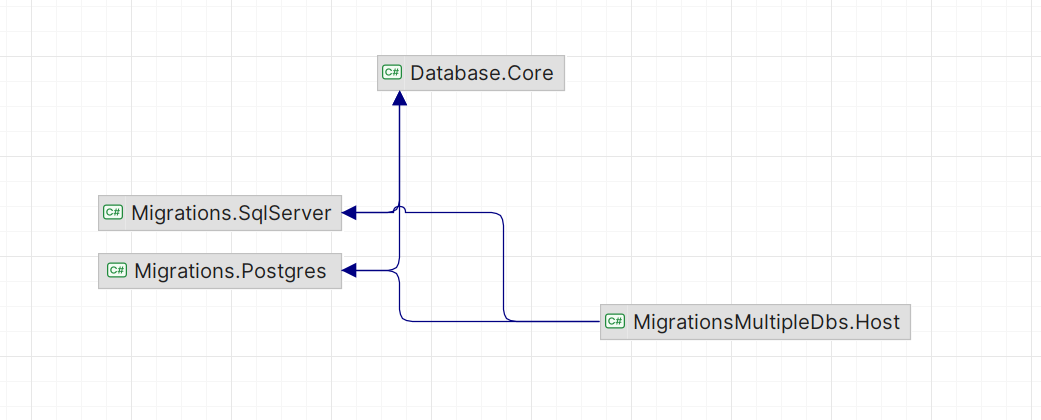
Each Migration project has reference to the Database.Core.
And Host project has reference to both Migration projects.
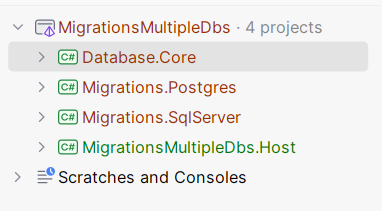
Here is the solution:
Database.Core project should have the following Nuget packages installed:
xml<ItemGroup> <PackageReference Include="Microsoft.EntityFrameworkCore" Version="9.0.0" /> <PackageReference Include="Microsoft.EntityFrameworkCore.Design" Version="9.0.0"> <PrivateAssets>all</PrivateAssets> <IncludeAssets>runtime; build; native; contentfiles; analyzers; buildtransitive</IncludeAssets> </PackageReference> <PackageReference Include="Microsoft.EntityFrameworkCore.Relational" Version="9.0.0" /> <PackageReference Include="EFCore.NamingConventions" Version="9.0.0" /> </ItemGroup>
Migrations.Postgres project should have the following Nuget packages installed:
xml<ItemGroup> <PackageReference Include="Microsoft.EntityFrameworkCore.Design" Version="9.0.0"> <PrivateAssets>all</PrivateAssets> <IncludeAssets>runtime; build; native; contentfiles; analyzers; buildtransitive</IncludeAssets> </PackageReference> <PackageReference Include="Microsoft.EntityFrameworkCore.Relational" Version="9.0.0" /> <PackageReference Include="Npgsql.EntityFrameworkCore.PostgreSQL" Version="9.0.2" /> </ItemGroup>
Migrations.SqlServer project should have the following Nuget packages installed:
xml<ItemGroup> <PackageReference Include="Microsoft.EntityFrameworkCore.Design" Version="9.0.0"> <PrivateAssets>all</PrivateAssets> <IncludeAssets>runtime; build; native; contentfiles; analyzers; buildtransitive</IncludeAssets> </PackageReference> <PackageReference Include="Microsoft.EntityFrameworkCore.Relational" Version="9.0.0" /> <PackageReference Include="Microsoft.EntityFrameworkCore.SqlServer" Version="9.0.0" /> </ItemGroup>
Host project doesn't need to include any EF Core dependencies directly.
In the next step, we need to change how EF Core's DbContext is registered in DI to support multiple database providers.
Changing EF Core DbContext registration
To support multiple migrations, we need to register it based on the provider:
csharpvar dbProvider = builder.Configuration.GetValue("provider", "Postgres");
Which is retrieved from the appsettings.json.
Postgres:
json{ "Provider": "Postgres", "ConnectionStrings": { "Postgres": "...", "SqlServer": "..." } }
SqlServer:
json{ "Provider": "SqlServer", "ConnectionStrings": { "Postgres": "...", "SqlServer": "..." } }
Here is how our DbContext's registration changes:
csharpvar dbProvider = builder.Configuration.GetValue("provider", "Postgres"); builder.Services.AddDbContext<ApplicationDbContext>((provider, options) => { if (dbProvider == "Postgres") { options.UseNpgsql( builder.Configuration.GetConnectionString("Postgres"), npgsqlOptions => { npgsqlOptions.MigrationsHistoryTable("MigrationsHistory", "devtips_multiple_migrations"); npgsqlOptions.MigrationsAssembly(typeof(Migrations.Postgres.IMarker).Assembly.GetName().Name!); }); } if (dbProvider == "SqlServer") { options.UseSqlServer( builder.Configuration.GetConnectionString("SqlServer"), sqlServerOptions => { sqlServerOptions.MigrationsHistoryTable("MigrationsHistory", "devtips_multiple_migrations"); sqlServerOptions.MigrationsAssembly(typeof(Migrations.SqlServer.IMarker).Assembly.GetName().Name!); }); } // Enable this only in development options.EnableSensitiveDataLogging(); });
Here we register UseNpgsql or UseSqlServer based on the provider value.
In each migration project, I have created an empty marker interface to get the migration assembly name easier without hardcoding its name:
csharp// Migrations.Postgres assembly namespace Migrations.Postgres; public interface IMarker;
csharp// Migrations.SqlServer assembly namespace Migrations.SqlServer; public interface IMarker;
Now that our setup is ready, we can start creating migrations for each database.
Creating Postgres Migrations with EF Core
To create migration for Postgres, you need to open Command Line in the solution root folder and enter the following command:
bashdotnet ef migrations add InitialPostres --startup-project ./MigrationsMultipleDbs.Host --project ./Migrations.Postgres -- --context Database.Core.ApplicationDbContext -- --provider Postgres
Let's break down this command.
--startup-project ./MigrationsMultipleDbs.Host- specifies the Host project that runs our application, this project should contain DbContext registration.--project ./Migrations.Postgres- specifies the project were migrations will be created--context Database.Core.ApplicationDbContext- specifies the DbContext name-- --provider Postgres- specifies the provider name, we use in our DbContext DI registration
NOTE: that we use here
--double dash twice, this is needed to make sure that--provider Postgresis passed as argument to our application and not to the migrations command
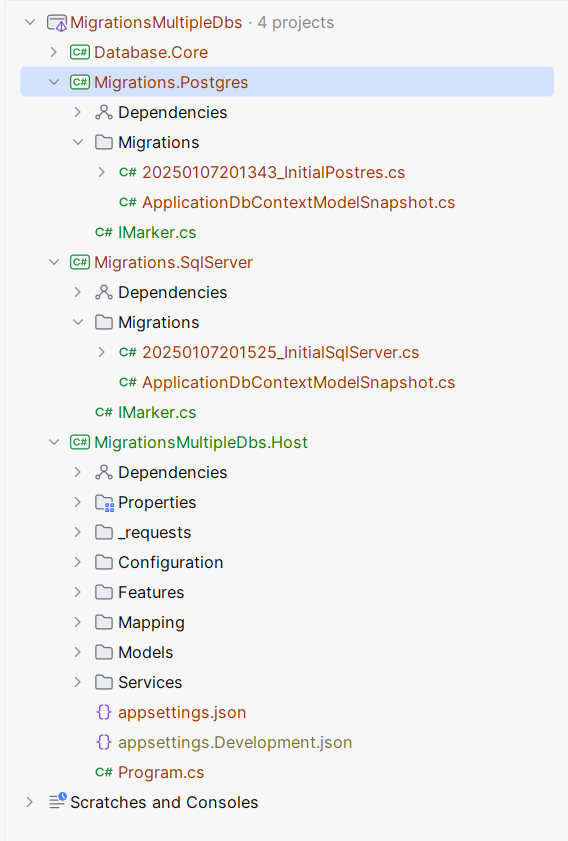
If you have done everything correctly, migrations for Postgres database will be created in the Migrations.Postgres project in the Migrations folder.
Creating MS SQL Server Migrations with EF Core
In the same way, we can create migrations for SQL Server. Open the Command Line in the solution root folder and enter the following command:
bashdotnet ef migrations add InitialSqlServer --startup-project ./MigrationsMultipleDbs.Host --project ./Migrations.SqlServer -- --context Database.Core.ApplicationDbContext -- --provider SqlServer
Here is the full structure of our solution:
When you need to update the migrations - repeat the command and create a new migration.
Summary
Creating migrations in EF Core 9 for multiple database providers is not hard to implement but consists of multiple steps. With this guide, you will be able to implement it in your projects without a need to spend hours or days figuring this out yourself.
Hope you find this newsletter useful. See you next time.
Comments